This major release puts account administration in one clearer place, gives teams more precise access controls, and adds self-service user management. It also brings a shared list experience, clearer currency values, more useful Copilot questions, cleaner invoice notifications, and steadier long sessions.
Field names, available modules, role options, and page access depend on your workspace schema, company configuration, and permissions. You may see a different label or fewer settings than the examples below.
New
Settings has three clear areas
Settings is now organized into My Settings, Organization, and Company. My Settings contains your profile, notifications, delegations, and password. Organization contains organization-wide general settings, members, and companies. Company contains company-level general settings, People, Groups, Roles & permissions, Approval Policies, and Accounting Periods.
To open it, select the gear-shaped Settings icon in the top bar or main navigation. Choose a section in the Settings navigation, then select the page you need. Access and edit controls still follow your role. Settings overview explains which level owns each kind of change.
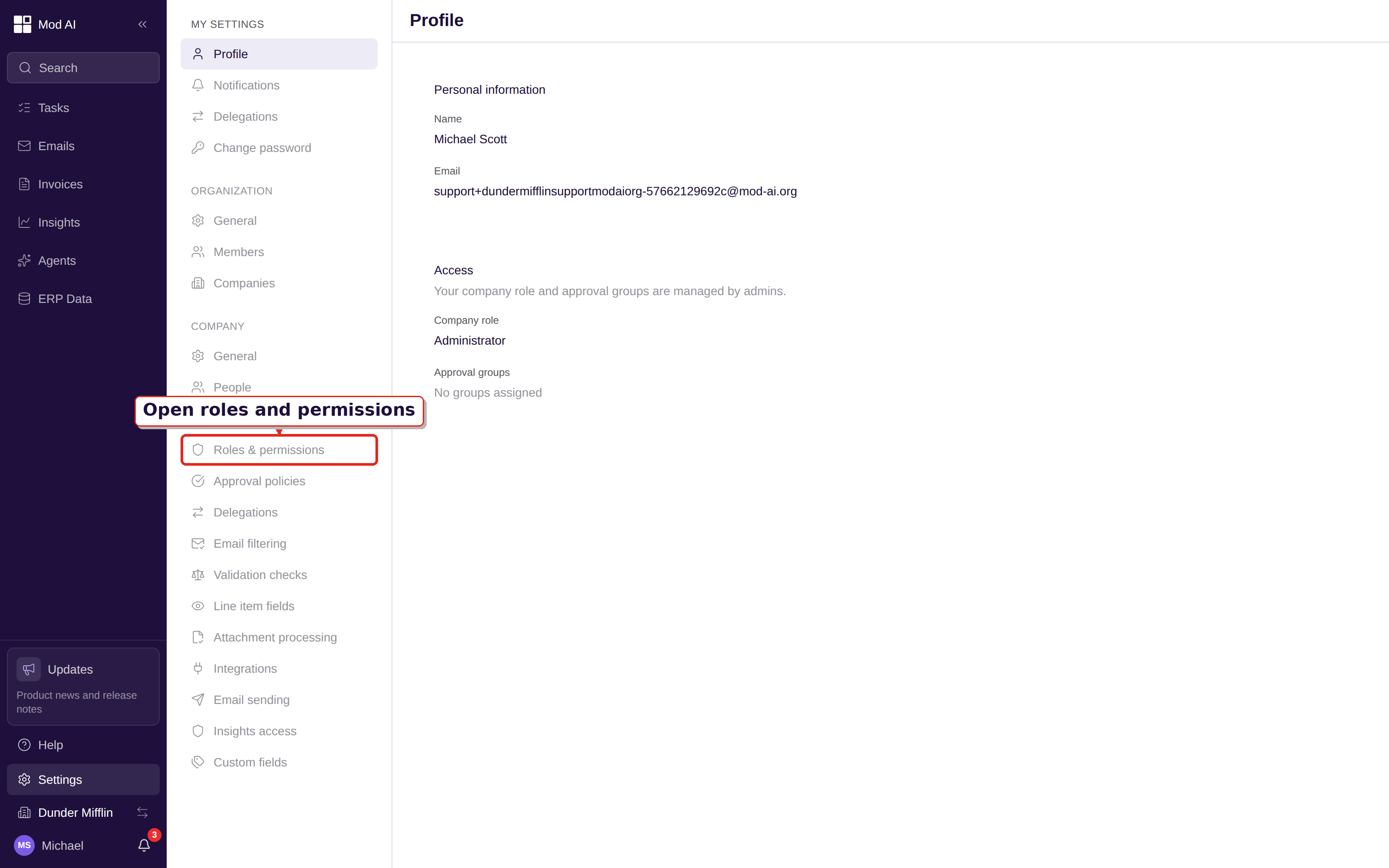
Show the three Settings areas and the Roles & permissions entry.
Roles and permissions are easier to reason about
The role editor now separates built-in roles from custom roles and uses one canonical permission catalog with more granular controls. Built-in roles are system roles: they cannot be edited or deleted. If a built-in role is close to what you need, choose Create custom role, select a base role, name the role, and choose its permissions in the matrix.
Open Settings, select Company, then Roles & permissions. Select a role to review its permissions, or choose Create custom role to make a role for a specific job. The permission matrix shows the available controls by category and keeps related choices together. Configure roles and permissions covers the role editor and custom-role workflow.
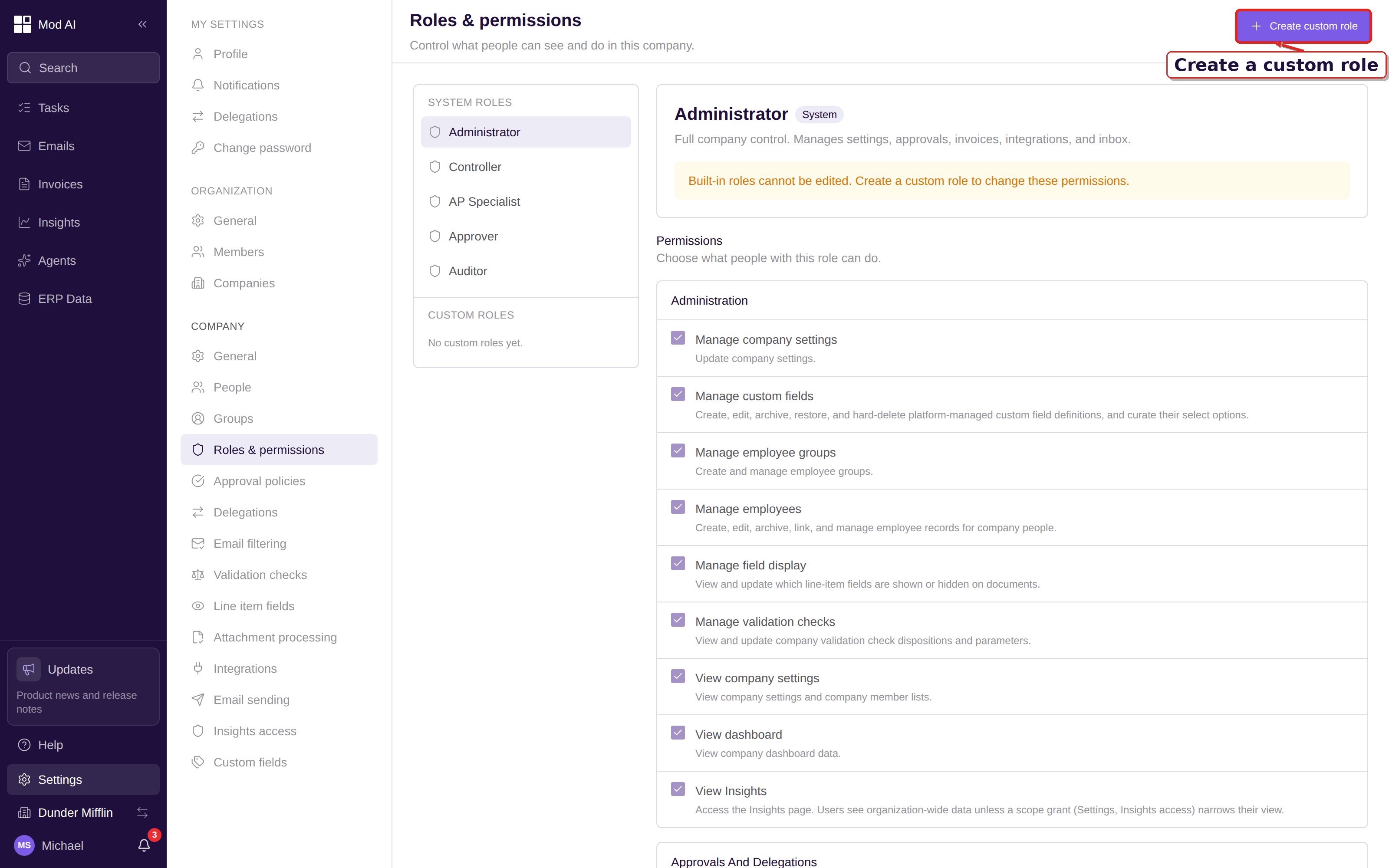
Teach where to create a custom role and review the Permissions matrix.
Approver-only access is also part of this permission boundary. When restricted approver view is enabled for a company, users whose role set is only Approver see only the invoice To-Do tab and its approval work, with the rest of the application hidden. Work in restricted approver mode explains what that focused view includes.
Invite and manage users without a support handoff
User management now covers the full access lifecycle. Invite a person, choose their primary role and company access, and send a single-click invitation link. You can suspend or restore access for a company without removing the person's history, and you can link the same identity across companies.
Open Settings, select Organization, then Members. Choose Invite user, enter the email address, set the primary role and company access, and select Send invite. For an existing member, open the row to review company access, link another company, or choose Suspend access or Restore access. Manage organization users includes invitations, suspension, restoration, and cross-company access.
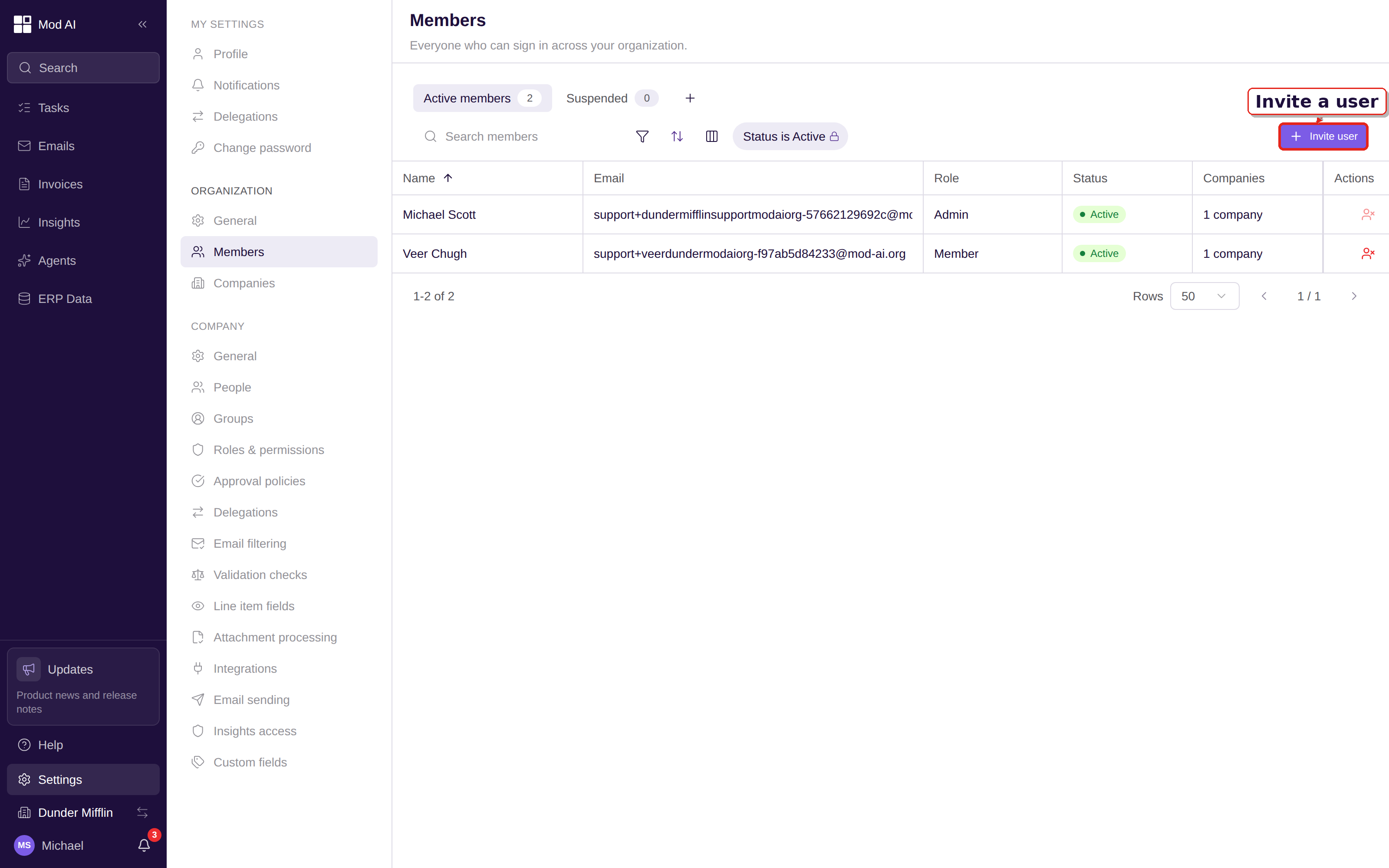
Show the Members list and the Invite user action.
Invoice notifications clear when the work is done
Review and approval notifications now resolve when the invoice moves past the step that required your action. You can use the notification bell to find current work without clearing unrelated notices with Mark all as read. Manage notification preferences explains the notification controls.
Improved
Lists and Saved Views share one table experience
Invoice, approval, People, and other list pages now use the same table family for search, filters, sorting, and columns. Saved Views v2 also makes changes easier to track. When you change a saved view, the toolbar shows View modified or Unsaved changes with clear Save, Save as new, and Reset actions. Autosave no longer creates a loop of duplicate updates.
Open any supported list page and use Filter, the sort control, or Columns in the table toolbar. Create or update a view from the saved-view bar, then save it when the toolbar shows a pending change. Search, filter, and save views shows the shared table controls and the saved-view states.
Currency values show an ISO code
Currency values now use an ISO currency code after the amount, such as 1,234.56 USD or (42.00) EUR. The same format is used in list cells, invoice details, totals, and editable currency inputs so the currency stays clear when symbols could be ambiguous. Open an invoice or a supported list page to see the code; no setting is required. Read currency values explains the display and input behavior.
Copilot can answer receipt and line-item questions
Copilot can now use receipt and line-item data when you ask questions such as “Which receipt supports this charge?” or “What are the line items on this invoice?” It uses the data your role can read. If a relation is not available to your role, Copilot stops with a permission response instead of retrying the same unavailable query.
Open an invoice, open the Copilot panel, and ask a focused question about its receipts or line items. Review the answer before making any correction. Use Copilot to fix an invoice covers prompts, answers, and permission-aware behavior.
Informational ERP notes
The Project picker now includes both projects and subprojects in one list, so you do not need to know which SAP record type contains the code. GL account choices also use more readable labels. Open an invoice, select a line, and use the Project or GL account control. SAP export and line-level PO matching includes the SAP workflow.
Blackbaud invoices can use a separate Posting Date when the invoice date falls in a closed month. During approval, approvers can edit memo and line descriptions without sending a textual correction back to review. Project pickers use human-readable project codes where available. Open an invoice and review the date and line controls in the invoice detail panel. Use the Blackbaud Financial Edge NXT integration includes the connector guidance.
Fixed
Long sessions stay connected
The platform now refreshes a session in the background when a live update connection encounters an expired token, then retries the connection once. Idle tabs no longer get stuck in a reconnect loop after a long period without activity. If the refresh itself cannot complete, the platform sends you back to Sign in. Log in to Clerked covers sign-in and recovery.
What to do
No release-wide setup is required. Review the new Settings navigation, check the built-in roles and custom roles your team uses, and confirm company access for active members. If your workspace uses SAP or Blackbaud, follow the inline note above when coding an invoice.