Understand vendor matching
When an invoice arrives, Clerked compares the information it can read with the vendor directory for your entity. It can use the vendor name, address, sender email details, trusted sender domain, and the vendor's GL cross-reference information, depending on what your environment provides.
How matching works
The agent looks for a strong match first. If the sender address is ambiguous, it can use the other vendor references and invoice details together instead of relying on the address alone. A verified sender domain can help; an unverified domain is not enough by itself to assign a vendor.
The result appears in the field your company uses for the invoice's vendor. For example, one company may label it Vendor under Invoice Header. A matched vendor name means the invoice is linked to a vendor record. An Unknown Vendor value means the agent could not choose safely and the invoice needs a person to review it.
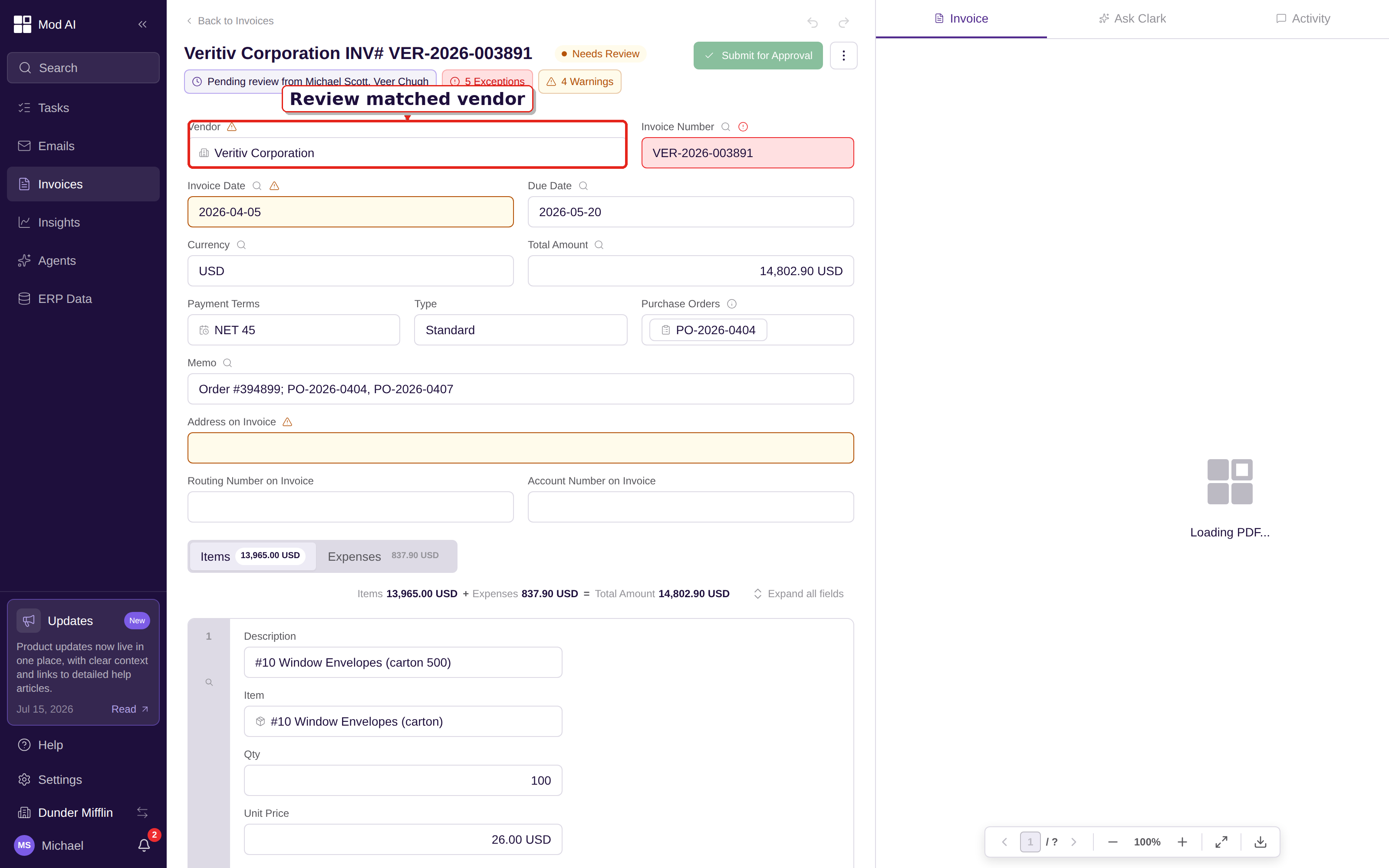
The Vendor field in Invoice Header shows the vendor chosen for the invoice.
Review a match
- Open Invoices and choose the invoice you want to check.
- Find the field your company uses for the vendor. In one common configuration, it is Vendor under Invoice Header.
- Use the small Highlight on PDF control beside a field when you need to compare an extracted value with the source document.
- If the vendor is unresolved or looks wrong, follow How to resolve a vendor match before you submit the invoice.
Do not approve an invoice just because the sender name looks familiar. Similar names can belong to separate vendors, and the correct vendor record controls matching, history, and downstream coding.
Corrections and future invoices
When you correct a match, Clerked can use that correction as vendor context for later invoices. Keep the vendor directory and GL references current in your ERP so future matches have the right information to compare.
Common outcomes
| What you see | What it means | What to do |
|---|---|---|
| A vendor name | Clerked found a usable match. | Check the name and continue your normal invoice review. |
| Unknown Vendor | The available details did not support a safe choice. | Use How to resolve a vendor match. |
| A vendor that looks close but not exact | The name may be a legitimate variation or a different vendor. | Compare the invoice, sender, and directory record before choosing. |
The fields and labels available for matching come from your entity schema and permissions. Your account may show different vendor reference fields or may hide some fields when they are empty.