This major release keeps attachment decisions at the attachment level, gives invoice discussion its own place, and makes reference data easier to find while you review an invoice. It also brings a clearer backlog, more reliable extraction, and fixes for Copilot and dashboard counts.
Field names, labels, available tabs, filters, reference-data types, and actions depend on your workspace schema, company configuration, and permissions. You may see a different label or fewer fields than the examples below.
New
Review only the email attachments that need a decision
Inbox review now routes each attachment on its own confidence result. An email with several attachments no longer makes you review every file just because one file is uncertain. Confident invoice attachments can move into processing automatically. A multi-invoice PDF or an attachment with an ambiguous classification stays visible for the decision it needs.
Open Emails, choose a thread, and select an attachment. Review the attachment's result and message context, then choose Invoice, Not invoice, or Multiple invoices when those actions appear. The decision applies to the attachment in the viewer. Inbox overview, Triage inbound email, and Review a multi-invoice PDF explain the review path.
Discuss an invoice in a dedicated Comments tab
Invoice discussion now has a flat Comments thread with a count badge, mentions, and an inline composer. The Activity tab is reserved for the clean audit feed, so a teammate's note does not get mixed into field-change history.
Open an invoice from Invoices, then select Comments in the invoice detail tabs. Read the thread, mention a teammate when your workspace allows it, and write in the composer at the bottom of the tab. Comments on invoices explains the discussion workflow, and Review an invoice shows how Comments and Activity fit into the detail page.
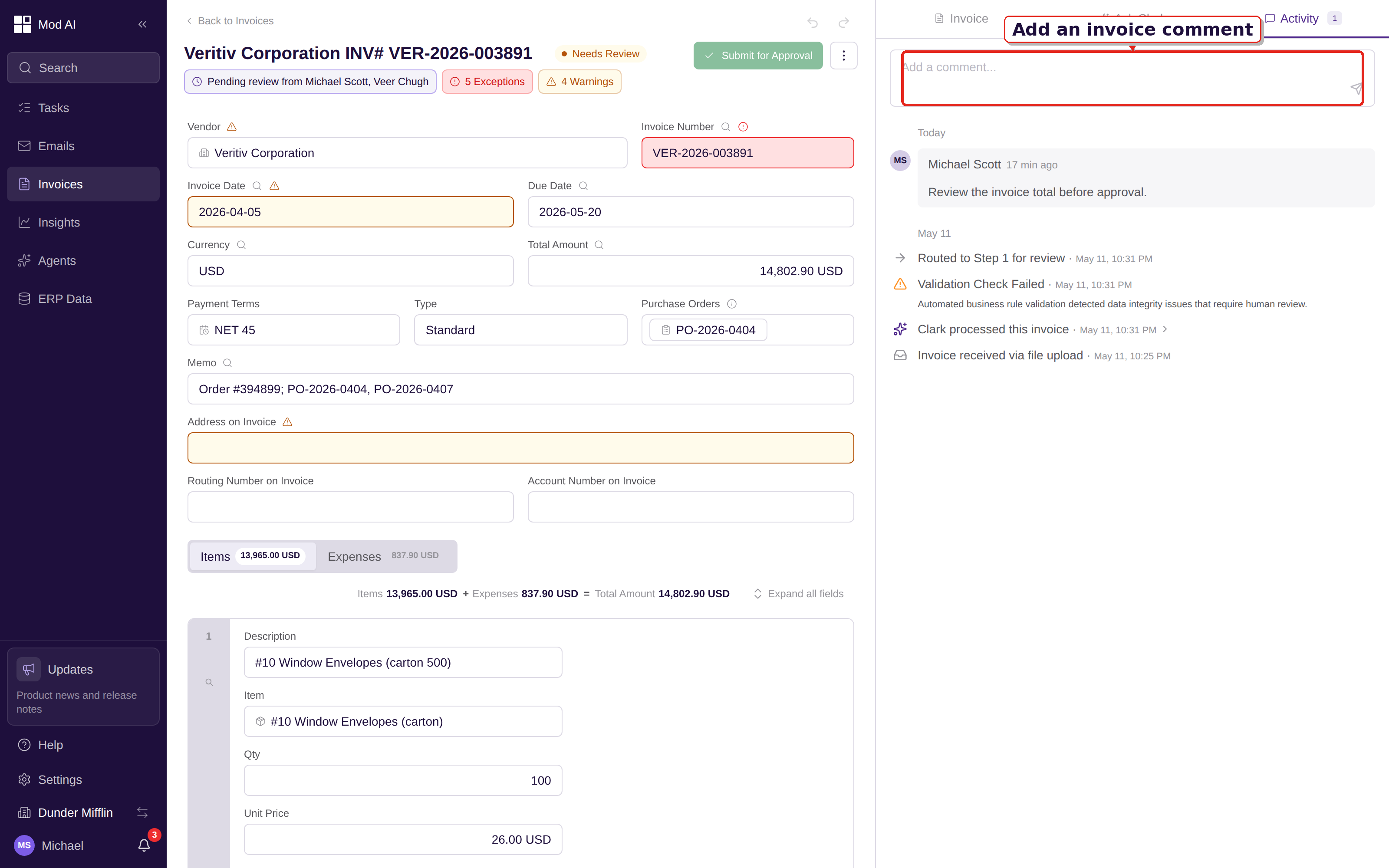
Current companion surface: add an invoice comment from the Activity area in today's interface.
Find reference data from invoice detail
The invoice detail page now has a broader reference picker. From a reference field, search the configured vendors, purchase orders, GL accounts, dimensions, or employees instead of leaving the invoice to find the record elsewhere. Available fields, filters, and constraints follow your company schema.
Open an invoice, choose a reference field in the header or a line, and use its picker search and filters. Review the matching record before selecting it. Advanced reference search gives the overview, and Search by reference fields gives the task steps.
Browse admin reference data in one place
Administrators can browse vendors, employees, GL accounts, and dimensions from the consolidated reference-data area. Team members can also be linked to employee records from the Members page, so approval assignments and user access stay connected.
Open Fields to browse the reference-data tabs available in your company. To link a person, open Settings → Organization → Members, select the member row, and use the employee-link control in the member drawer. Admin reference-data tools, Browse reference data, and Link an employee to a user cover these workflows.
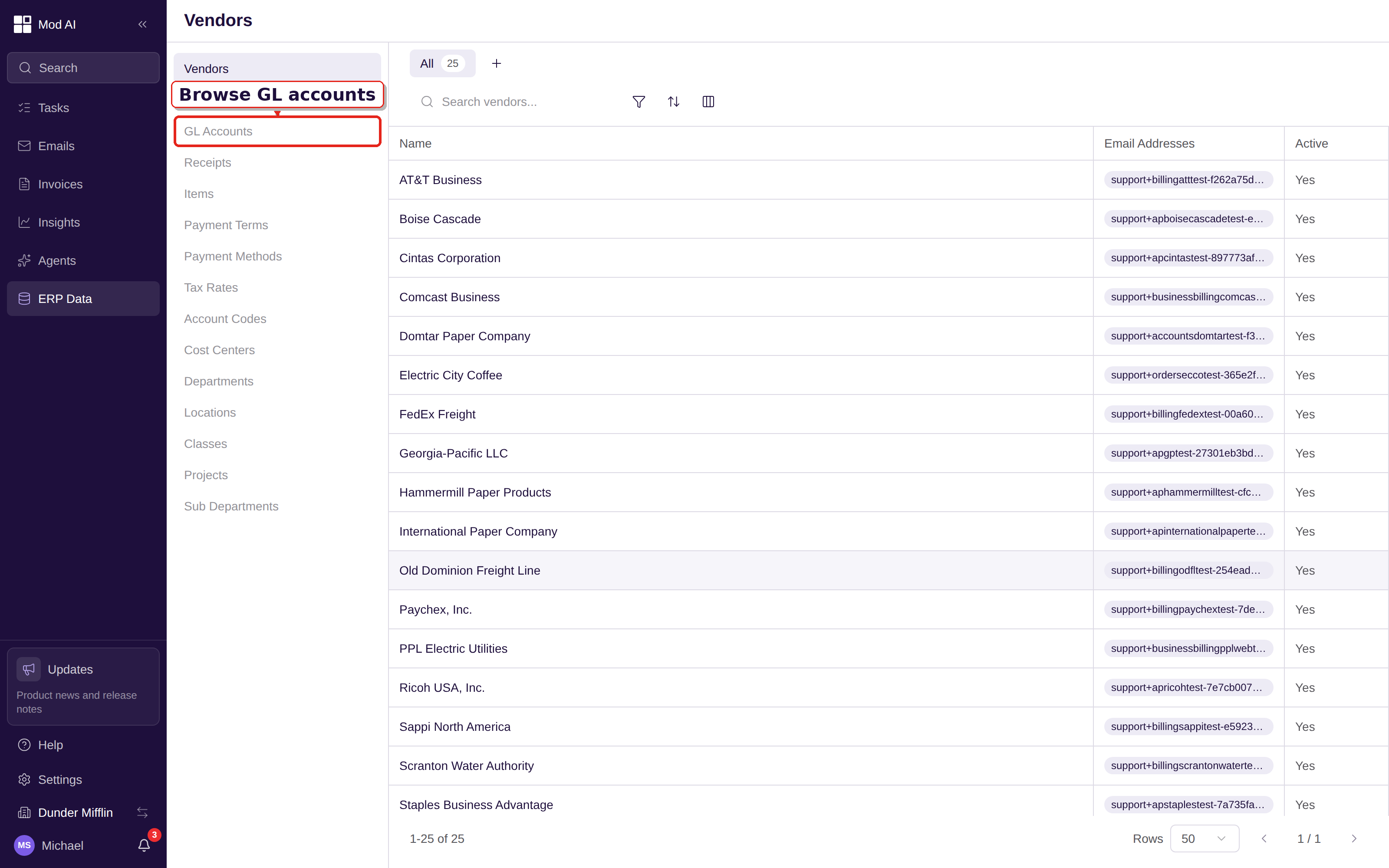
Current companion surface: browse the reference-data types and records available in today's interface.
Improved
Work the invoice backlog by phase
The invoice backlog now has four focused tabs: Pending Review, Pending Approval, All, and Recently Deleted. Use the PO or non-PO filter and the approved-only filter when you need a narrower worklist. Select rows and use the inline bulk-action bar above the table. Recently Deleted is for restore actions, so deleted rows do not open as normal invoice work.
Open Invoices, choose the tab for the work you are doing, apply Filter, and select rows only after checking the visible status and reference columns. Invoice backlog and bulk actions and Search, filter, and save views explain the tabs, filters, and safe batch workflow.
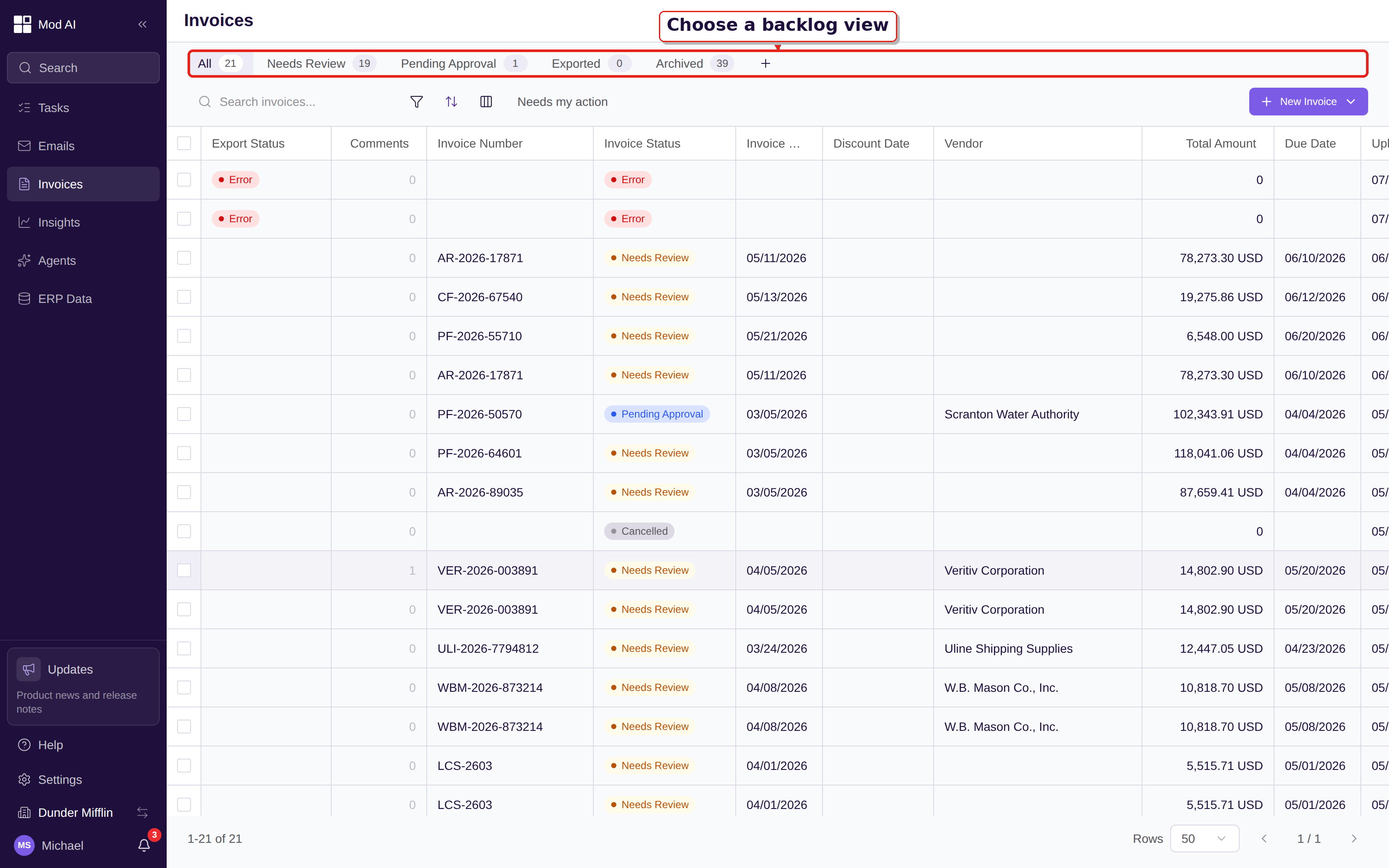
Current companion surface: choose the backlog view that matches the work you need to do today.
Extraction handles more of the cases that slow review
An extraction accuracy pass improved credit-memo amounts, line-total math, email-thread context, and vendor matching. Long PDFs, including documents over 100 pages, also extract more reliably. Review highlighted fields against the source document, then correct only what needs a decision. How AI extraction works lists the extraction checks and Review an invoice shows the verification workflow.
More header and line fields are available where they help
New header and line fields rolled out to several customer schemas to give extraction and review more context. Your workspace may show new labels or additional fields behind a line-item expander. How AI extraction works and Review an invoice explain how to read schema-driven fields.
On PO-matched lines, Clerked leaves the GL account empty so SAP can derive it from the material master at posting. The field is not a missing-data error for that SAP workflow. Review the PO match and let the normal SAP export continue. SAP export and line-level PO matching includes the details.
Fixed
Copilot stays usable while you review
The Copilot chat bar no longer keeps a stale prompt after you navigate away. If you edit an invoice while Copilot is running, the response now stays visible with a recovery path instead of disappearing. The chat bar also no longer blocks the last line item from scrolling into view. Use Copilot to fix an invoice explains the review-before-apply flow.
Dashboard counts include earlier pending work
The Invoices Pending and Awaiting Review counts now include pending items from earlier months, not only invoices created in the selected recent period. Use the dashboard counts to find the full open queue, then open the linked work before changing the date range. Dashboard overview explains the cards and Action Center.
What to do
No release-wide setup is required. Review the new attachment-level inbox decisions, try the Comments tab on an invoice, and check the reference-data and Members pages if you administer the workspace. If your company uses SAP, follow the inline note when reviewing PO-matched lines.