Release 2026.04.27 gives AP teams a clearer way to review vendor email, confirm PDF page groups, search by the references they already use, and keep invoice processing moving through temporary errors. This entry records the release as it was published on April 27, 2026.
Labels, fields, sort choices, vendor references, action buttons, and permissions depend on your entity schema and role. The examples below describe the current product behavior, but your workspace may use a different label for the same action.
What changed
Threaded vendor email review
The Emails area now shows inbound vendor email in a Gmail-style thread list with real received dates and times. In day-to-day work, you can see the sender, subject, status, attachment count, invoice count, and message count before opening a thread, then review an attachment inline without losing the conversation.
Open Emails in the left sidebar. Use Search emails..., Filter, Needs my action, and New view to find the right queue. Open a row, read the thread, and click an attachment when you need to review it. Choose Invoice to process it as an invoice or Not invoice to leave it out of invoice processing. Some workspaces call the first action Process as invoice. Start with Inbox overview for the list and Triage inbound email for the attachment decision.
The list is available without a new setup step when the inbox is enabled. You may already see status counts, real timestamps, attachment counts, and linked invoices on existing threads. A linked invoice can take you back to its source thread through View email, and an invoice created from a thread can be opened from that thread. Keep vendor replies together explains both directions and the message history.
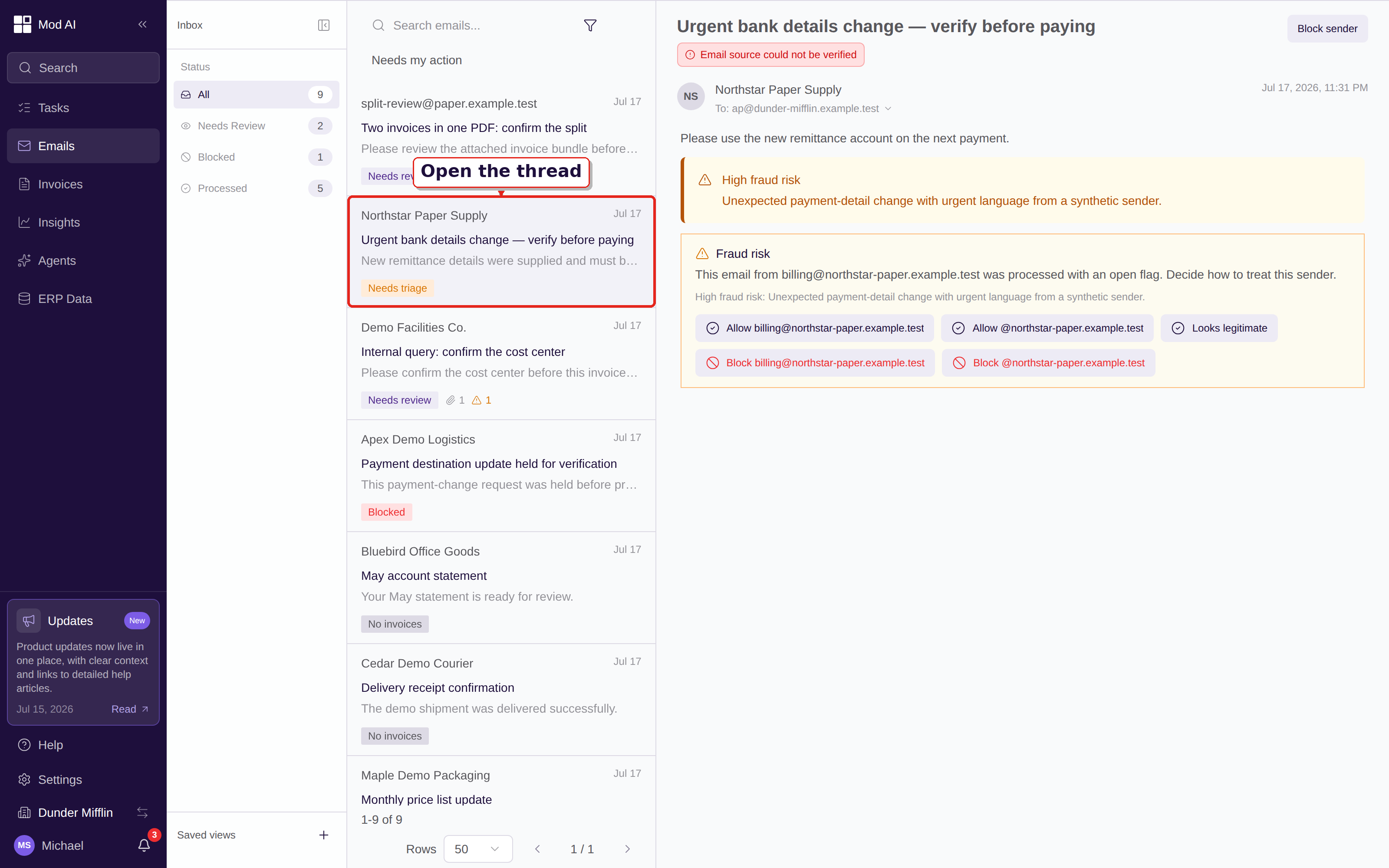
Choose a real email thread from the list to review its messages and attachments.
Inbound matching can use the sender address, domain authentication such as DKIM, vendor records, invoice details, and trusted cross-reference data when those signals are available. An unverified sender is not enough on its own to assign a vendor. Check the Vendor field in Invoice Header and read How vendor matching works when a match needs review.
Multi-invoice PDF review
When a PDF contains more than one invoice, the attachment pauses for a page-split review before extraction creates invoices. This lets you confirm which pages belong together instead of correcting a split after processing.
In Emails, open the thread with the attachment marked Needs review, click the PDF, and choose Multiple invoices. Check the page thumbnails and PDF preview, adjust the split between pages if needed, then click Process invoices. If no proposal is available, the editor starts with the full page range so you can create the groups. Multi-invoice PDF review explains the result, and Review a multi-invoice PDF gives the click-by-click task.
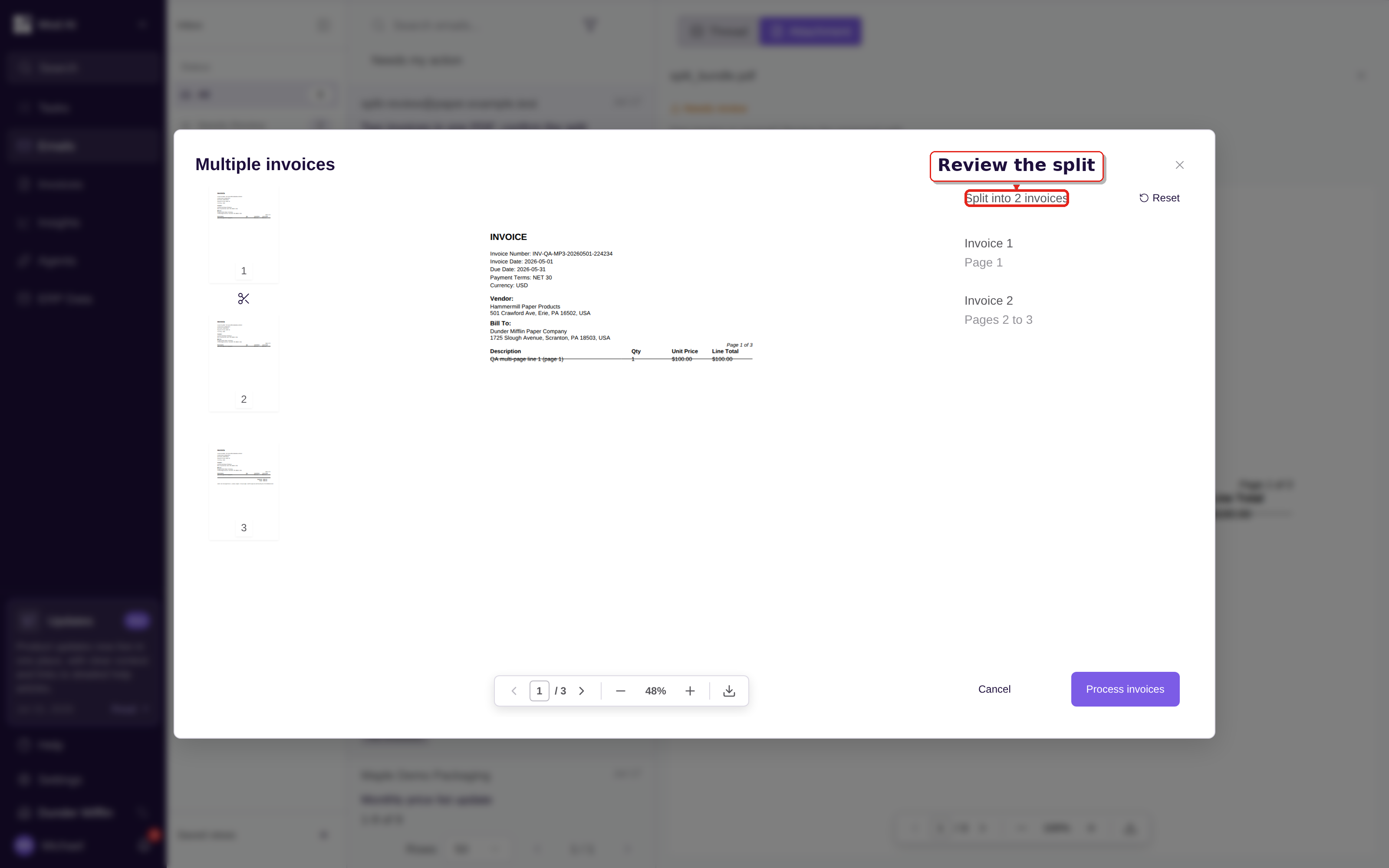
Confirm each page group before you process the PDF into invoices.
The review step appears automatically for a flagged multi-invoice PDF. The split editor shows the page count, current groups, and the invoice count you are about to create, so you can see the result before submitting it.
Broader search
Search now reaches more of the references AP teams use. Invoice search includes the memo and vendor external ID. Vendor search includes more vendor reference fields, and purchase order and receipt search include their related vendor and document references by default.
Open Invoices, Vendors, Purchase Orders, or Receipts, then type in that list's search box. Use Filter, Sort, and New view when you need to narrow or save the result. Search across your AP records explains the fields on each list, while Search by reference fields gives the exact workflow for invoices, vendors, purchase orders, and receipts.
The wider search fields are available without a settings change. Results still depend on the records and fields in your company, so an empty or unavailable reference cannot produce a match.
More reliable extraction
Temporary extraction errors now retry automatically instead of failing an invoice at the first interruption. In normal work, leave the invoice in its processing state while the retries finish. If a Processing Error notice remains, open the invoice, read the notice, and follow Processing error notices for the next step.
SAP line-level PO references
For SAP-connected workspaces, approved invoice exports now carry a matched purchase order reference on the invoice line that uses it. That gives SAP the detail it needs to check each line against the correct PO line during three-way matching.
No new setting is required. Open a matched invoice, choose Items, check the purchase order reference on each line, and let the normal ERP sync run after approval. Read SAP export and line-level PO matching for the review steps.
Settings access
The Settings link is now visible in the left sidebar for every signed-in user. Click it to open the settings navigation; the pages and edit controls you can use still follow your role. Read Settings overview for the three tiers and access model.
Validation notices after cancellation
When you cancel an invoice, its open Validation Failure notice now clears with the cancellation. Open Cancel Invoice from the invoice action bar when the document should not continue, confirm the action, and use the invoice history if you need the record later. Validation failure notices covers both the fix-and-validate path and the cancel path.
What to do
Start in Emails if your team reviews vendor messages before invoices are created. Use the thread list to find the next queue, open a PDF marked Multiple invoices before you process it, and use View email when an invoice needs its source message. Use the list search fields for memo, vendor, PO, and receipt references, and check each SAP-matched line before an export. No release-wide setup change is required.