Release 2026.04.25 helps AP teams resolve vendor identity questions, move approval work in batches, and sort inbound email with less back-and-forth. This entry records the release as it was published on April 25, 2026.
Field names, labels, approval steps, and available actions depend on your accounting setup and permissions. If a label in this entry is not in your account, use the closest matching field or ask your workspace admin.
What changed
Smart vendor matching
When a sender address did not identify a vendor clearly, Clerked could now compare the sender with vendor names and GL cross-reference data to resolve the right vendor automatically. That means fewer Unknown vendor tasks and less searching before you review an invoice. Open Invoices, choose an invoice, and check the Vendor field in Invoice Header; How vendor matching works explains the match and How to resolve a vendor match explains the review step.
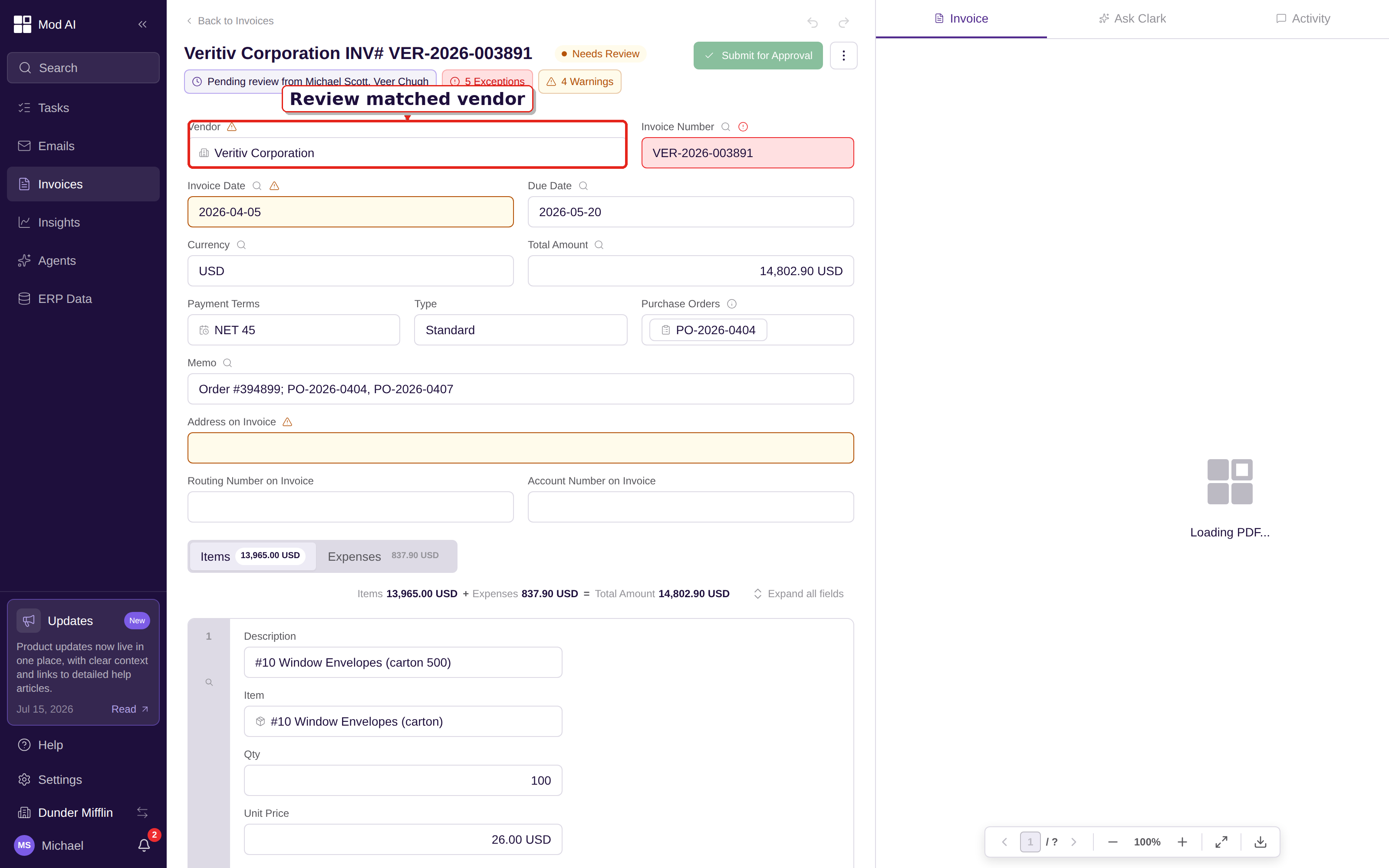
Review the matched vendor in the invoice header before you continue your review.
Bulk approval queue
You could now approve or reject several invoices in one action from the invoice backlog, which cuts repeated opening and closing when a batch is ready. In Invoices, open Pending Approval, select Needs my action, check the rows, then click Approve or Reject; Bulk approve invoices covers the selection, confirmation, and result steps.
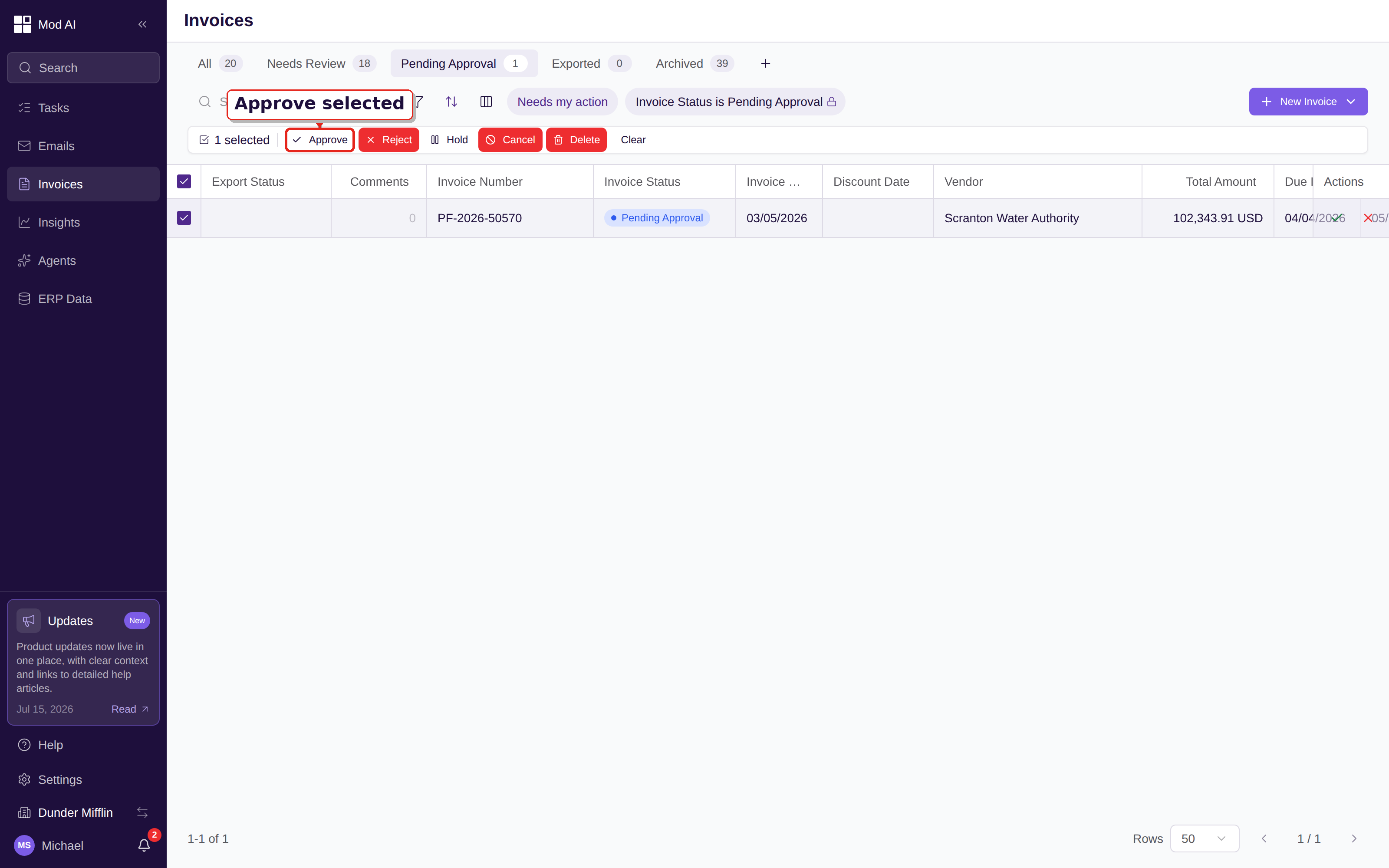
Select the invoices you are ready to process, then choose an action from the bulk bar.
Approval routing speed
Invoices over $10,000 with more than one approval level moved through routing about 40% faster, so larger invoices spent less time waiting between approvers. No setup was required; open Invoices, choose Pending Approval, and use Needs my action to see work waiting on you. Read How approvals work for the routing flow and Approve and reject invoices for the approver steps.
Inbox triage labels
Inbox triage now surfaced fraud concerns and internal queries with clearer labels on each email row, so the team could see what needed attention before opening every thread. Open Emails and read the label below each subject: Needs triage brings a flagged sender or fraud concern forward, Needs review marks work that needs a person, and Blocked identifies email that was held from processing. Open the labeled email to review the message and decide what happens next; Triaging inbound email explains the review path and Inbox overview explains the available views.
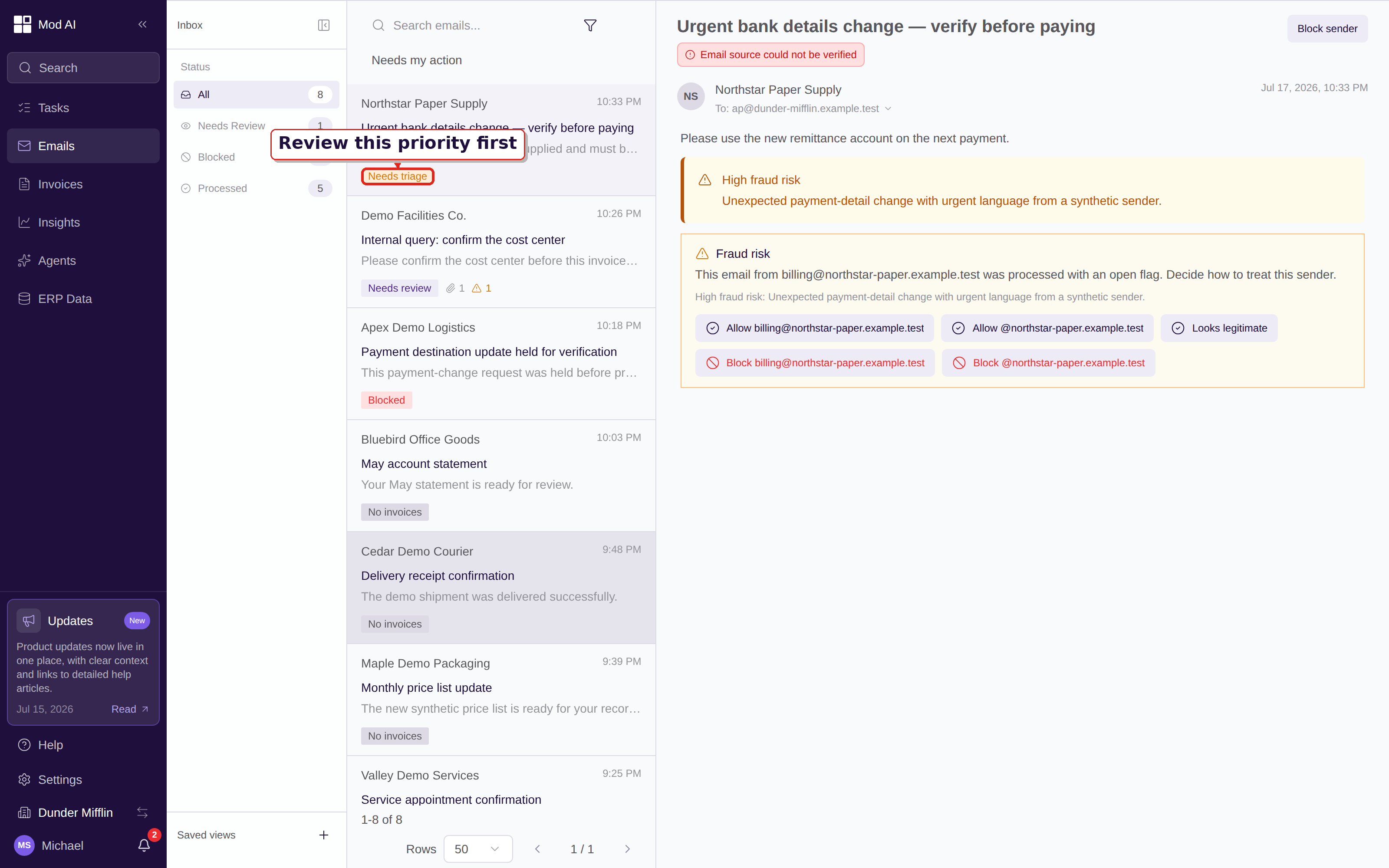
Read the label below each subject first, then open the highest-priority email to review its details.
Duplicate invoice detection
Duplicate checks no longer treated similarly named vendors as the same vendor, which reduced false duplicate warnings for legitimate invoices. Open the invoice from Invoices, expand Document notices, compare the vendor, invoice number, date, amount, and line items, then choose View duplicate or Mark as not duplicate when those controls appear; read Duplicate invoice notices for the full decision path.
Vendor reply threading
Replies from the same vendor conversation now kept their context across more than one email chain, so you could read the history before deciding how to process the message. Open Emails, select the thread, and read the messages in order before using a triage action; Keep vendor replies together explains what stays connected and how to review it.
What to do
Start with the queue that matches your role. Review unresolved vendors in Invoices, process ready approvals in Pending Approval, and use the priority labels in Emails to start with work marked Needs triage, Needs review, or Blocked. The release did not require a settings change.