Release 2026.05.11 gives AP teams a faster path through inbound email, complex invoices, account selection, multi-invoice PDF review, and invoice corrections. This entry records the shared general release published on May 11, 2026.
Inbox labels, field names, account labels, status names, action buttons, permissions, and available ERP behavior depend on your entity schema and role. The examples below describe the general product behavior, but your workspace may use a different label for the same kind of work.
What changed
Smarter inbox triage
The inbox can now process attachments automatically when the agent is confident they are invoices. Attachments it cannot classify confidently stay in the review queue, where you can confirm Invoice or Not invoice. If the attachment is a PDF containing more than one invoice, choose Multiple invoices to review the proposed page groups before processing.
Open Emails, choose the queue your workspace uses for work to do, and open the attachment that needs a decision. Review the message and attachment, then choose the matching action. Triage inbound email explains the confirmation path, and Review a multi-invoice PDF explains the page-by-page split.
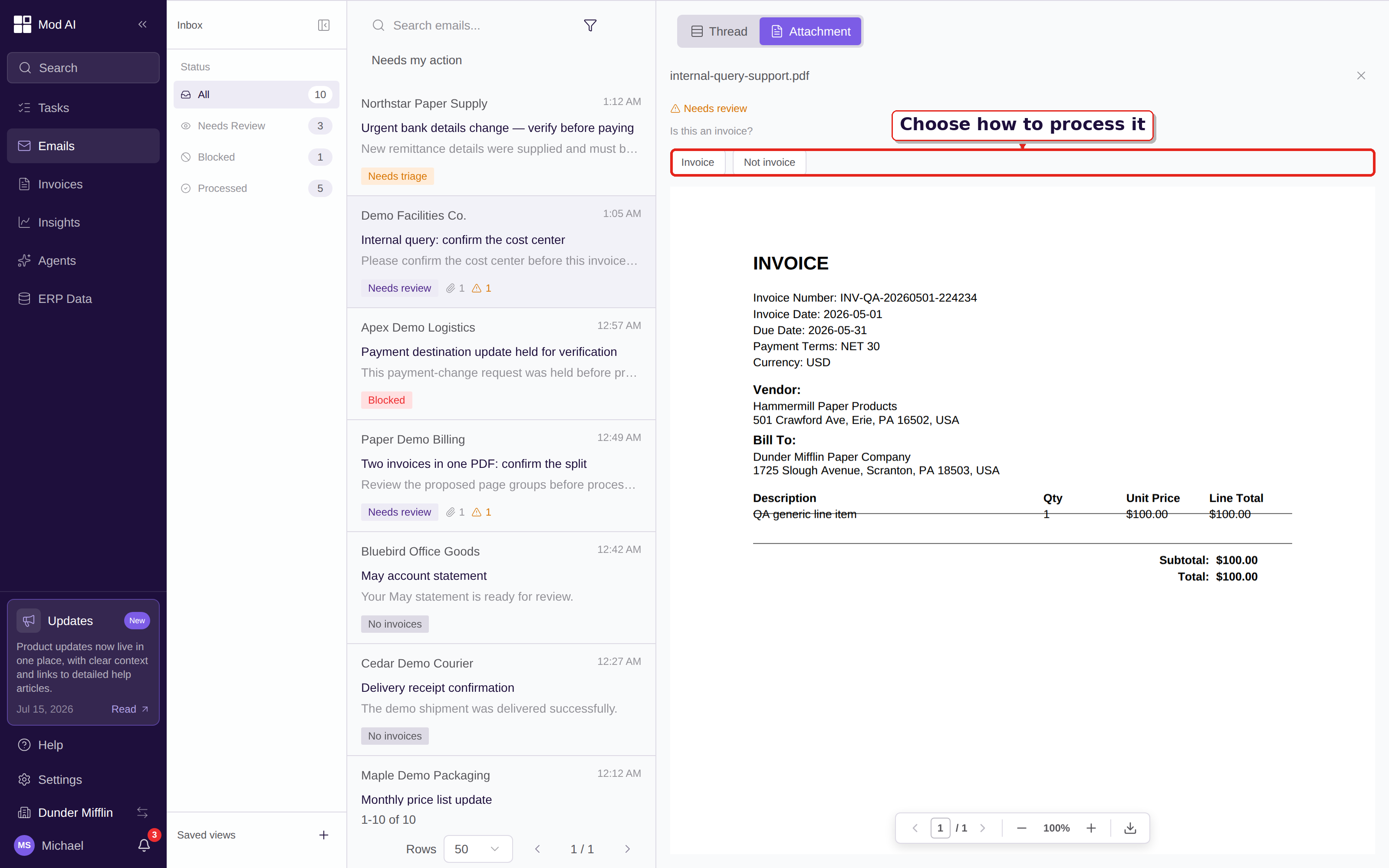
Confirm an uncertain attachment in the inbox before it moves into invoice processing.
More accuracy on complex multi-line invoices
The invoice agent now has more room to finish invoices with many line items and uses exact line math when Copilot consolidates lines. That means long invoices can arrive with more complete results, while consolidation totals stay tied to the invoice lines instead of a separate estimate. This is separate from exception resolution: the agent is better at completing complex work, and it still sends an uncertain correction to you rather than guessing.
For a long invoice, review the extracted lines and totals as usual. If you need to combine duplicate lines, open the invoice, use the Copilot chat bar at the bottom, describe the consolidation, and review the proposed diff before clicking Accept. Understand automatic exception resolution covers the review path, and Use Copilot to fix an invoice covers the consolidation workflow.
Automatic exception resolution
The invoice agent now reviews common extraction and validation exceptions before asking you to intervene. It fixes issues it can determine from the document and configured rules, including problems such as line totals that do not add up, header and line mismatches, duplicate tax, and missing fields. When the agent cannot establish a safe correction, it leaves the exception for you to review instead of guessing.
Continue to review the invoice and its notices when it reaches your queue. Understand automatic exception resolution explains what the agent can repair and when it escalates.
Active accounts in search
Account and GL-account pickers no longer surface inactive accounts in their search results. Search for the account you need in the same dropdown; the list stays focused on accounts that are available for selection. Code invoice lines covers the account-picker workflow.
More reliable split-review thumbnails
The multi-invoice split editor now keeps page thumbnails rendered reliably while you review the proposed groups. Open Multiple invoices, inspect the page thumbnails and preview, adjust any boundary, and process only after the page grouping is correct. Multi-invoice PDF review describes the review state, and Review a multi-invoice PDF gives the task steps.
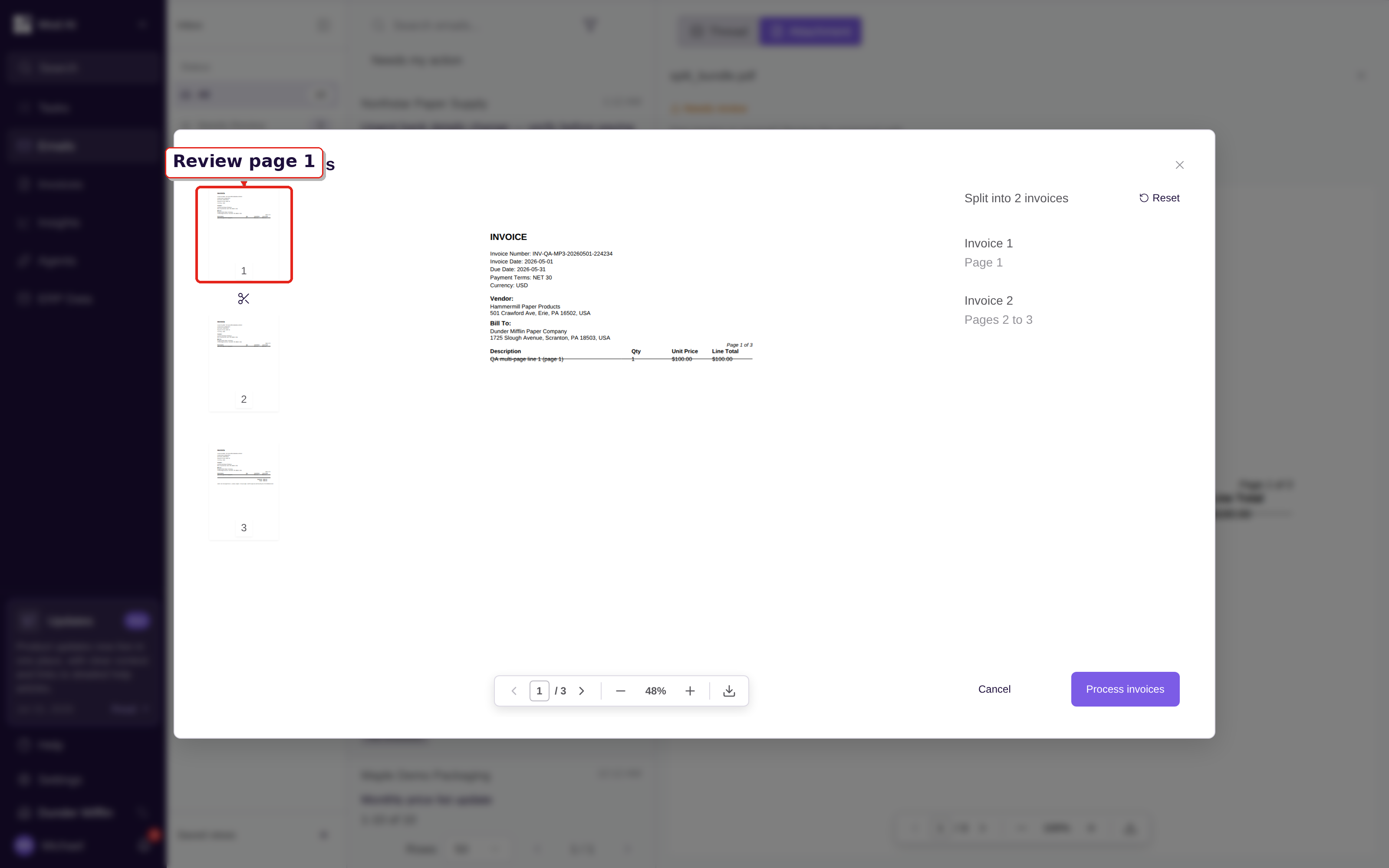
Use the page thumbnails to confirm the proposed split before processing the PDF.
Page-level discard in split review
You can now leave backup pages out of invoice processing when a PDF contains an invoice plus a cover page, remittance page, summary, or other supporting material. In the Multiple invoices editor, hover over the page thumbnail you do not want to process and click Skip. The thumbnail turns grey and shows Skipped, and the result on the right lists that page separately. If you change your mind, click the same thumbnail again, now labeled Include page N.
Review the remaining page ranges, then click Process invoices. Only the pages assigned to invoice groups move into invoice processing. Multi-invoice PDF review explains the behavior, and Review a multi-invoice PDF gives the exact clicks.
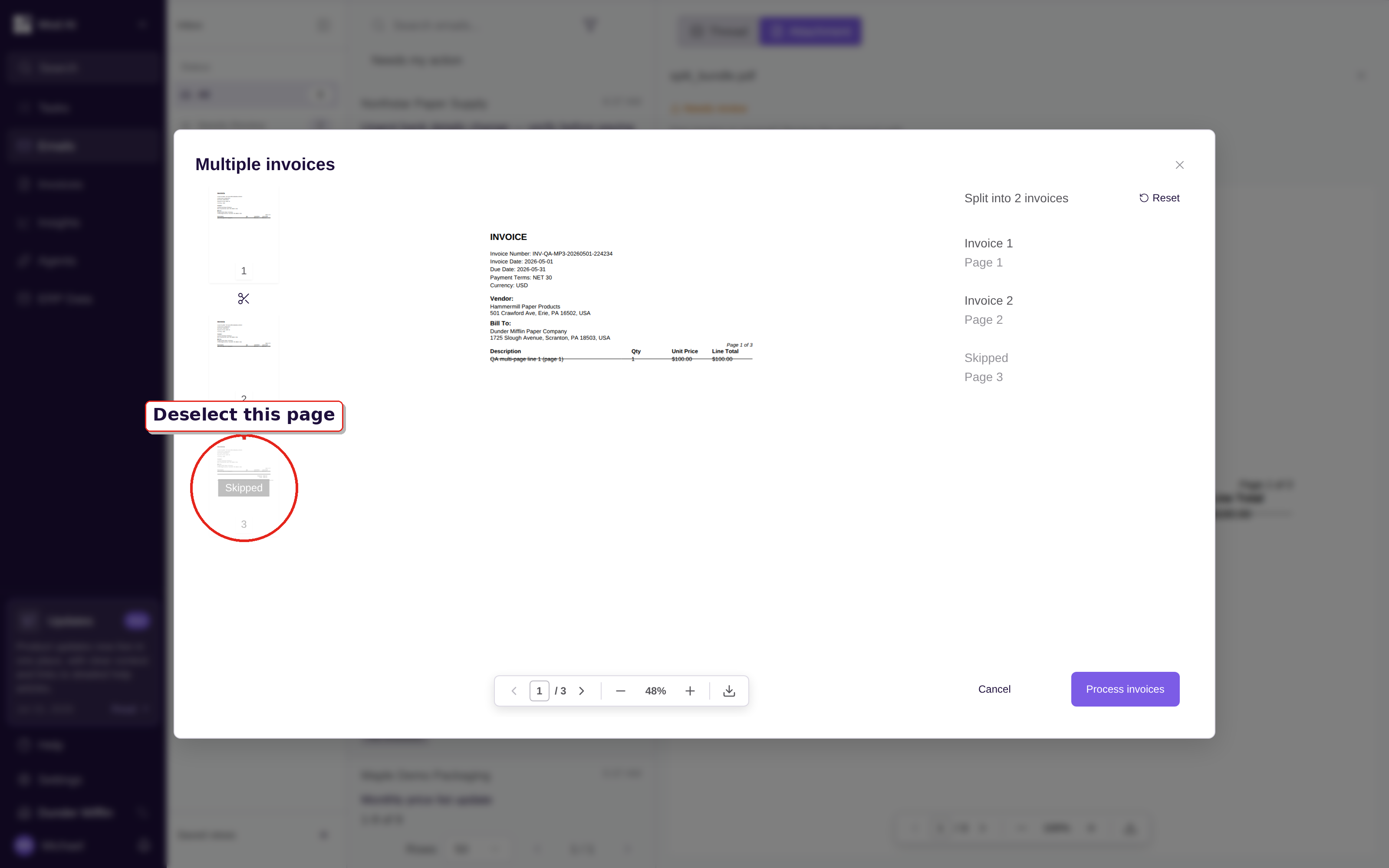
Deselect a cover, summary, or backup page before processing the invoice pages.
Copilot is back
Invoice Copilot is available again after the May upgrades. When it is enabled for your workspace and you have invoice edit access, open an invoice and use the Copilot chat bar along the bottom of the page. Describe the change in plain language, review the proposed diff, then click Accept or Reject. Nothing changes until you accept the proposal. If the chat bar is not visible, ask your administrator or Clerked partner whether Copilot is enabled for your workspace.
Correct invoices with Copilot explains where to find the chat bar, and Use Copilot to fix an invoice walks through the propose-review-accept cycle.
What to do
No release-wide setup change is required. Start in Emails and work the review queue when an attachment needs a classification decision. For an invoice that reaches you with an exception, read the notice and correct only what the agent could not resolve. Use the active account results when coding a line, confirm every page group before processing a multi-invoice PDF, and use Copilot when it appears on an invoice you can edit.