This major release puts a prioritized Tasks workspace at the center of daily AP work. It also saves bill edits as you make them, gives admins direct control over inbound email decisions and team records, and makes bill review easier on smaller screens.
Field names, labels, record types, filters, available actions, and invoice sections depend on your workspace schema, company configuration, and permissions. You may see different bill or invoice labels, fewer task tabs, or different settings controls than the examples below. The screenshots are current-surface companions from the anonymous Dunder Mifflin tenant, not a recreation of the June 10 interface.
New
Start with a prioritized Tasks workspace
Tasks is now the home screen for work that needs a decision. Bills to review, bills to approve, and email work appear in one prioritized list, so the next action is visible without switching between separate backlogs.
Open Tasks from the left sidebar. Use the task-type tabs to narrow the queue, then use Search, Filter, and Sort to find the work you need. Select a row or Start tasks to enter focus mode. The focus rail shows your place in the queue; use the previous and next controls or finish the current item to move through it one item at a time. Saved views from the release remain available on supported list surfaces, while the current Tasks companion below shows the tabs, search, filters, and focus entry point exposed in this tenant.
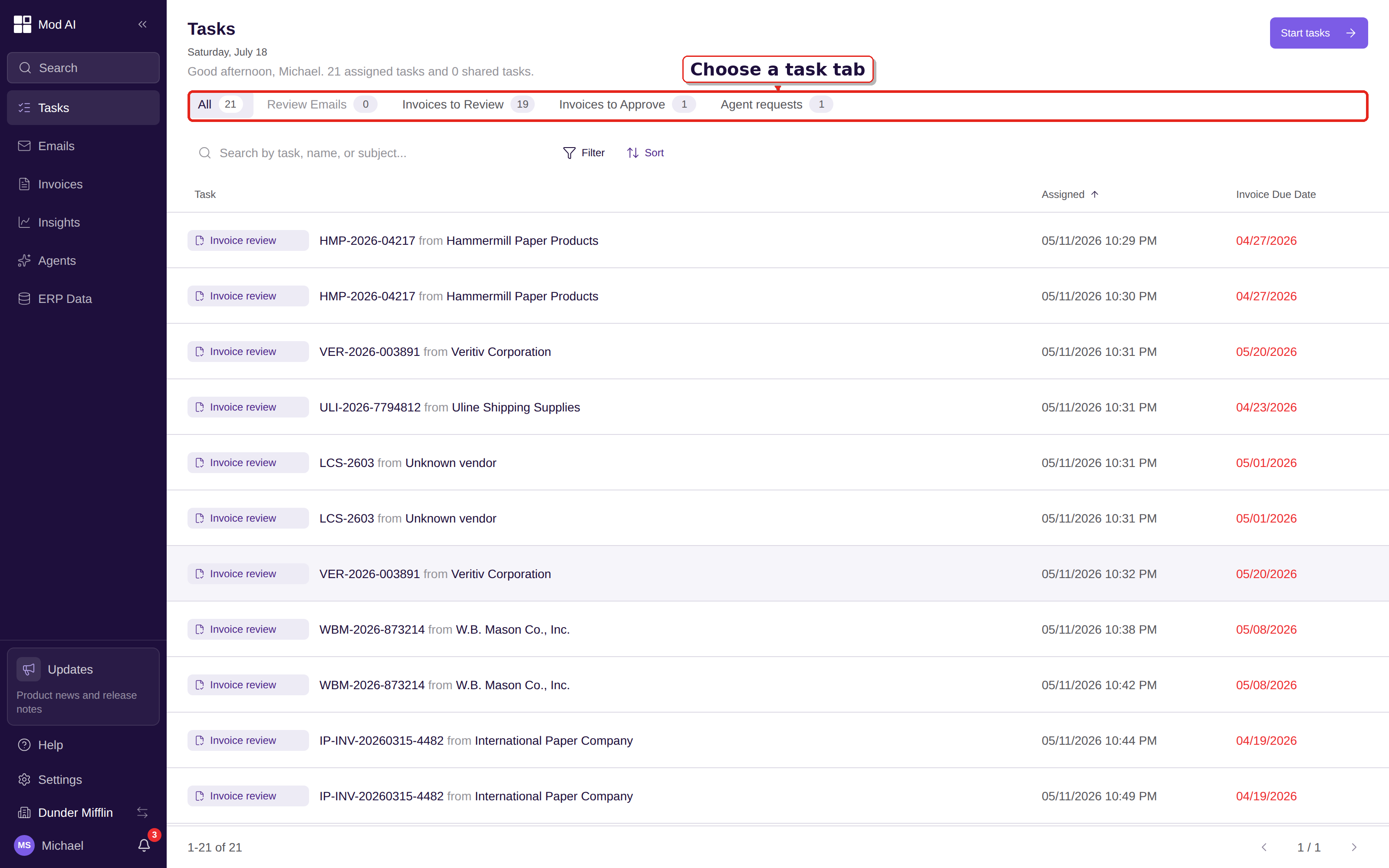
Current-surface companion: the Tasks home shows the available task tabs and the prioritized queue in the anonymous tenant.
Read Tasks workspace for the list, tabs, focus mode, and completion flow.
Edit bills with live autosave
Every change to a bill now saves automatically as you work. Validation runs in the background after the save, so a new exception can surface while you are still reviewing the record. There is no Save button to remember, and leaving the page does not discard a completed edit.
Open a bill from Tasks or Invoices, change a header or line-item field, and keep working. The detail page shows Saved after the change is stored. If a validation error appears, use the Exceptions notice to see what needs attention; if an autosave fails, use Retry in the error message. Submit waits for the latest save and validation result.
Read Live autosave and validation and How validation works for the review cycle and exception states.
Tune email handling from Settings
Email controls now separate the decisions that happen at intake from the sender and domain lists that shape future mail. Set each email validation check to Off, Warn, Review, or Block. In Settings → Company → Email filtering, manage trusted and blocked sender or domain entries, with an option to apply a list decision to existing flagged email. From the inbox, the current surface calls the one-click trust action Allow domain; this is the current label for the release's “Trust this domain” action.
When an inbound message includes a recognizable vendor sender, Clerked can match the vendor automatically before the email enters the rest of the workflow. Review the sender and domain decision before allowing future mail, and use Process once when only the current message should continue.
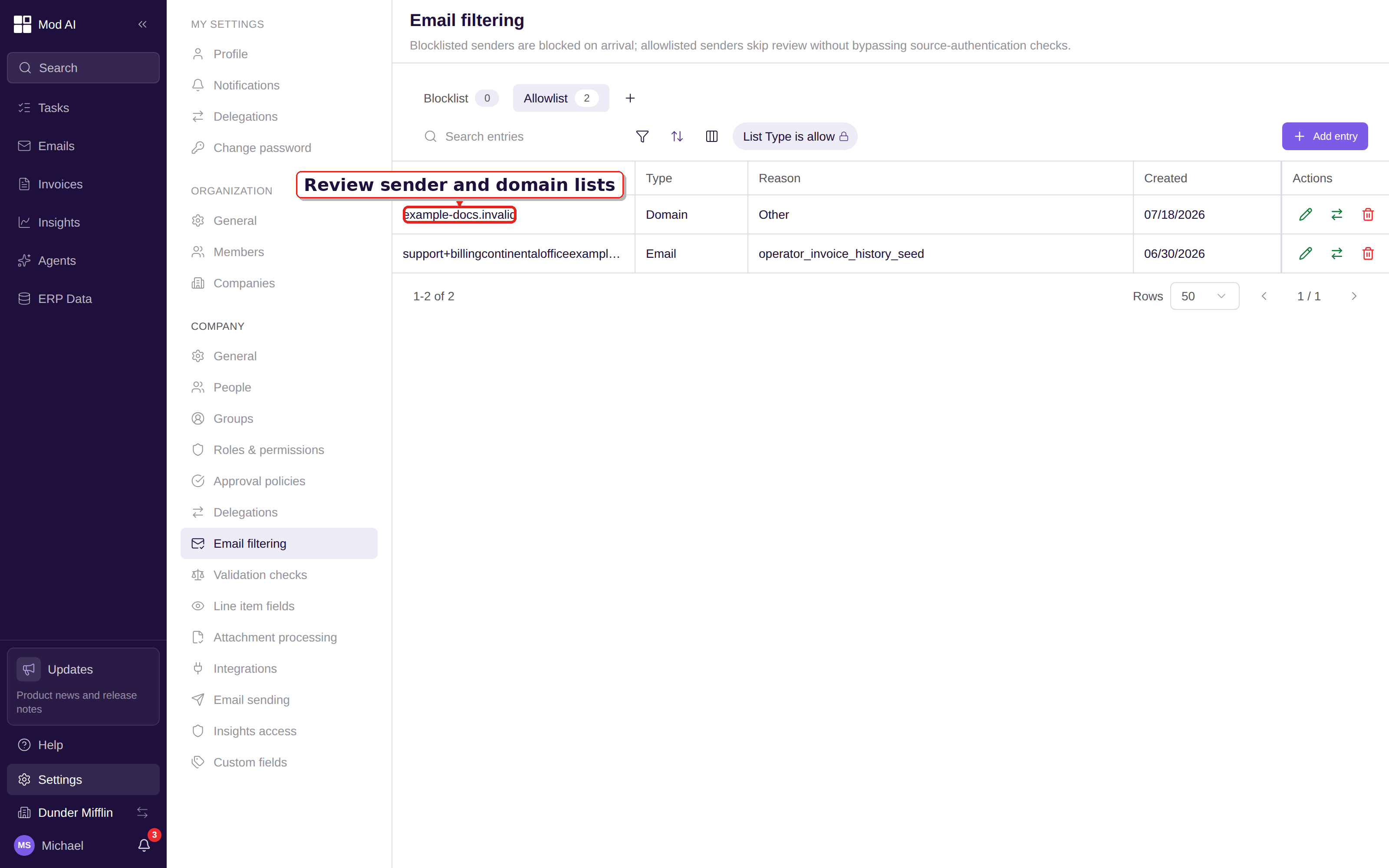
Current-surface companion: Settings → Email filtering shows the sender and domain allow/block lists. Per-check dispositions are on the adjacent Validation checks page.
Read Email controls for list decisions and Configure email validation checks for per-check behavior.
Give the AI your own instructions
Admins can now add company guidance for invoice extraction and email handling in the Agents settings area. This is the place to record repeatable rules such as how to classify a vendor message, which evidence to use, or how your team codes a recurring bill pattern.
Open Agents, choose the instruction area, write the rule in the editor, and select Save. The instruction is used by the relevant agent on the next invoice or email workflow; it does not rewrite records that have already been processed.
Read Custom AI instructions for the editor, examples, and testing cycle.
Manage your team without a support request
Company admins can now manage employee records directly. Open Settings → Company → People to add a person, edit their details, or archive an inactive record. Archived records stay available for history and can be restored when the person returns. The page prevents archiving an employee who still owns an active approval responsibility until that route is handled.
Read Manage people for employee records and Manage organization users for sign-in access and member links.
Improved
Review bills in a responsive detail workspace
The bill detail page now adapts to smaller screens and keeps the work surface easier to arrange. Drag the divider to resize the document panel, collapse it when you need more room for fields, or use the narrow Data and Document tabs when the screen cannot show both panes. The document rail groups the bill, source email, and AI views into tabs, and PDF zoom and scrolling settle more smoothly while you inspect the source.
Open a bill from Tasks or Invoices, use the document-panel divider to set the balance you prefer, and choose the rail tab that answers the question you are checking. The layout is remembered for the next bill on the same device.
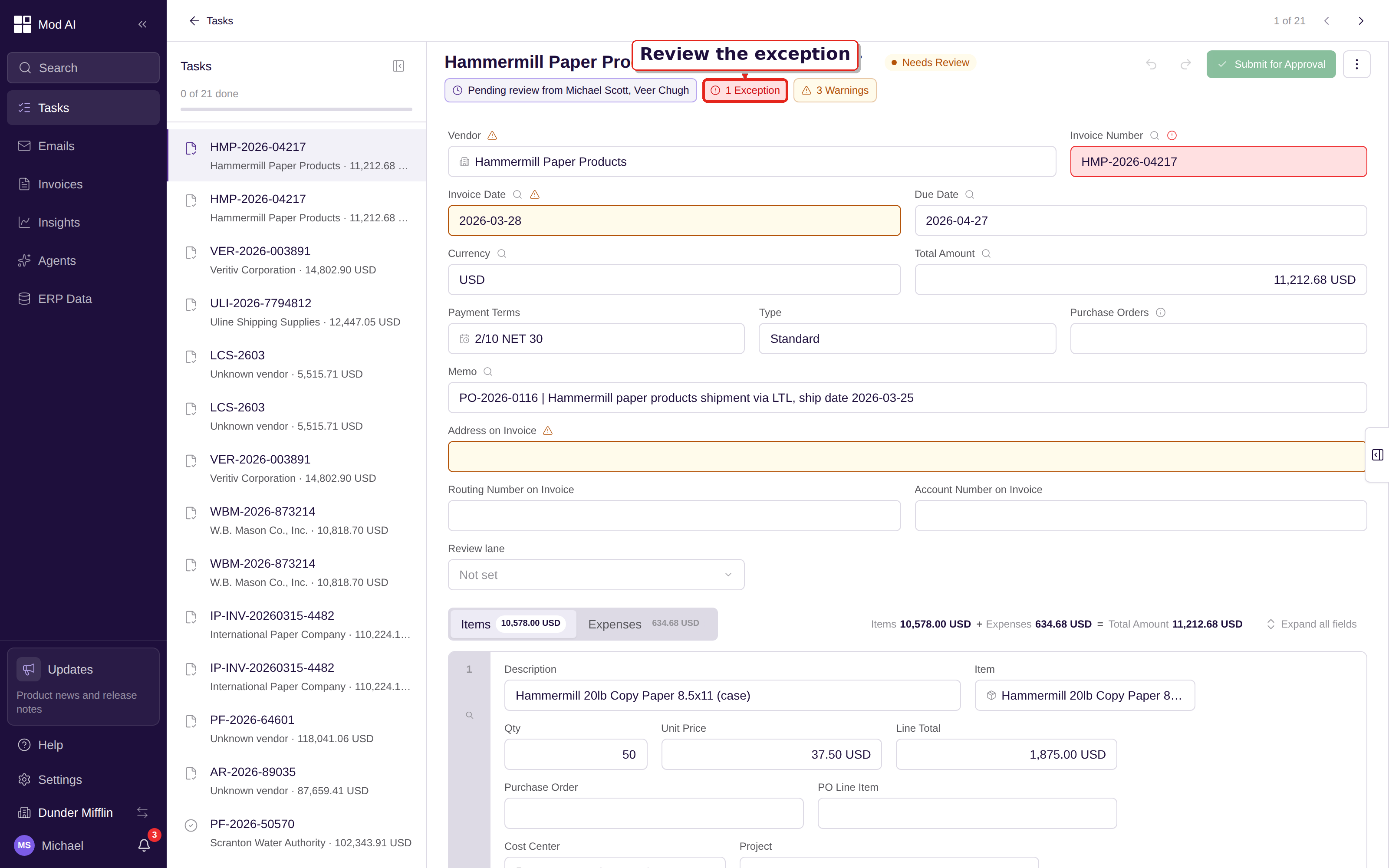
Current-surface companion: the current Task focus bill detail shows the document rail tabs and the exception-aware action bar.
Read Review a bill for the detail layout, source checks, notices, and actions.
Edit long memo and description text without taking over the page
Memo and description fields now use a compact inline editor. Start editing in the field, then expand it into a full dialog when the text needs more room. The same editor works for long line descriptions, so a detailed note does not force the whole table row to grow.
Read Review a bill for where long text appears in the header and line items.
Keep list views and expanded fields in place
Supported list pages now remember column layouts, filters, saved views, and expanded fields as you move between pages, switch tabs, or return later. A deliberate view change still needs an explicit save when the page supports saved views; loading a page does not create a new view or overwrite your defaults.
Read Create and update Saved Views and Search, filter, and save views for the shared list controls.
On PO-matched lines, Clerked now carries the correct GL account, cost center, and project coding, or lets SAP derive the coding at posting when that is the configured path. Tax treatment appears inline on each line. Review the PO match and line coding before approval. Read SAP export and line-level PO matching for the SAP workflow.
Fixed
Stop submission when exceptions remain
Bills with unresolved blocking exceptions can no longer be submitted by mistake. The action bar now shows how many exceptions remain before Submit for Approval, and the button explains that the exceptions must be resolved. Select the exception count to review the affected fields, fix the records, and let the background validation run again before submitting.
Read Validation failure notices and Live autosave and validation for the resolve-and-recheck flow.
What to do
No release-wide setup is required. Start from Tasks, review the new email and validation controls in Settings, add any company-specific AI guidance in Agents, and use the responsive bill detail layout when you review a source document. If you manage SAP-connected work, follow the inline SAP note while checking PO-matched lines.