This major release gives Clerked a durable way to learn from reviewer corrections. Agent Memories turn approved guidance into reusable context for future invoices and emails, with an admin review step and an audit trail. The release also lets each company decide which price and quantity differences matter, apply field edits across a batch, and follow matching results directly to the line that needs attention.
Field names, record labels, tabs, controls, available memory scopes, ERP actions, and invoice sections depend on your workspace schema, company configuration, permissions, and ERP integration. The screenshots are current-surface companions from the anonymous Dunder Mifflin tenant, not a recreation of the June 16 interface.
New
Teach Clerked with Agent Memories
Agent Memories are reusable pieces of company guidance. When reviewers correct the same kind of invoice or email more than once, Clerked can turn that pattern into a proposed memory instead of asking the team to repeat the correction forever. An active memory can guide later extraction, coding, matching context, or email classification. It does not rewrite work that has already finished, and it cannot bypass validation or approval policy.
The nightly cycle is intentionally human-reviewed:
- Clerked looks at repeatable reviewer corrections and supporting evidence.
- A high-confidence pattern becomes a proposal in Tasks.
- An authorized reviewer opens the memory-review task, reads the proposed guidance, and checks the source record, before-and-after values, citations, vendor context, and exceptions.
- The reviewer chooses Create this memory, Update this memory, or Reject this memory. An approved result becomes active in the relevant agent's Memories list.
Admins can also create their own guidance without waiting for the nightly queue. Open Agents, choose Invoice processing or Email processing, open Memories, and click Add memory. Write the condition, action, and exception in plain language. Choose Global when the rule applies across the company, or Vendor when it belongs to one vendor. Vendor scope is available for invoice-processing memories when the company schema provides that anchor.
Companies with ERP-history seeding can start with candidate guidance grounded in approved historical records. Those rows are marked Seeded from ERP history and still go through human review before activation. The Memories page also shows whether a row was created by a user, approved through the memory workflow, seeded from ERP history, or imported from settings.
When an active memory is used on an invoice, open the invoice's Activity feed to see the application event. A grouped event such as Clark used 3 memories can be opened to inspect the applied guidance and citations. A field rationale may also say From memory. This makes it possible to trace what the agent used and who approved the rule.
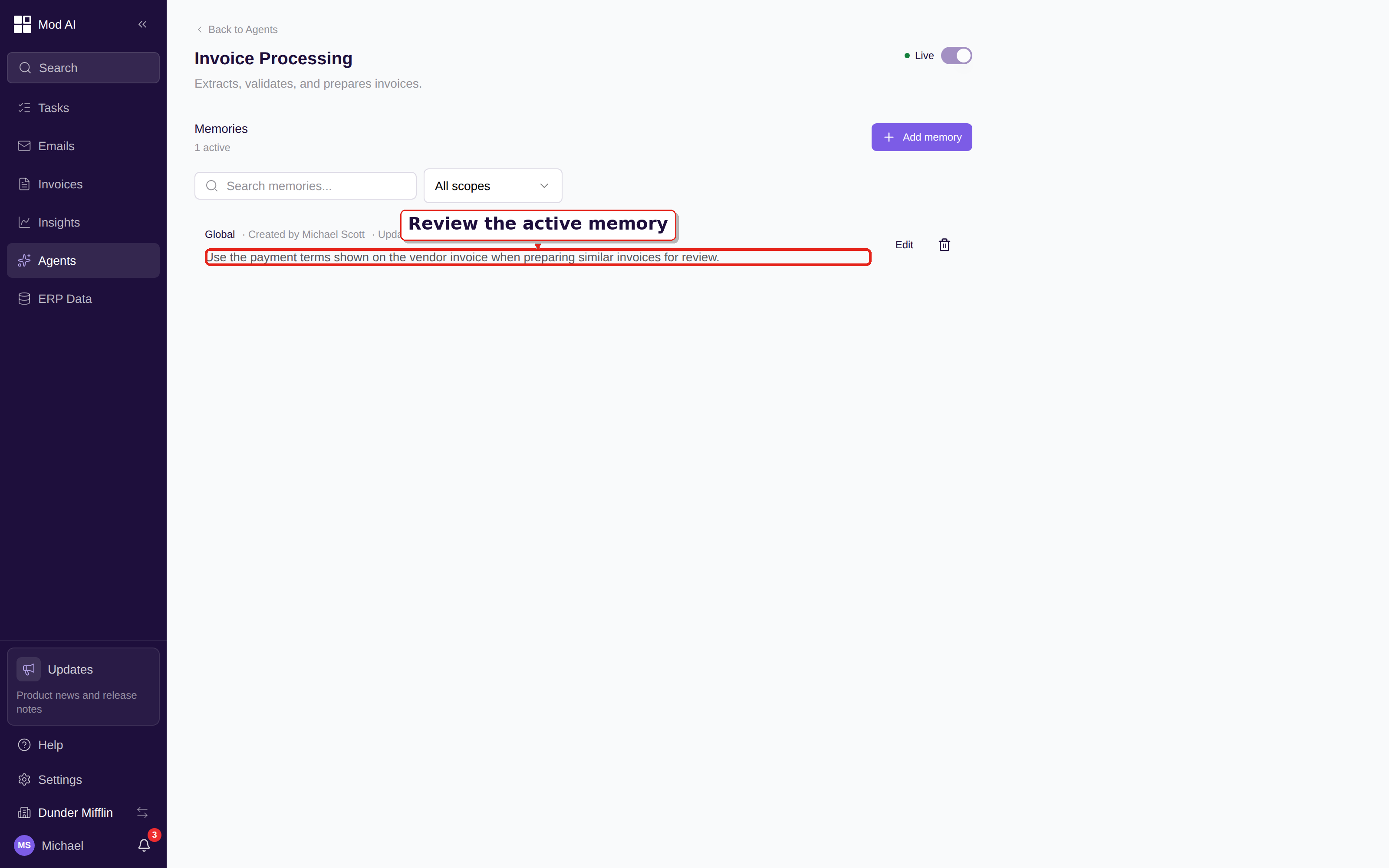
Current-surface companion: the anonymous tenant's active Memories list shows guidance, scope, and provenance in the Agents area.
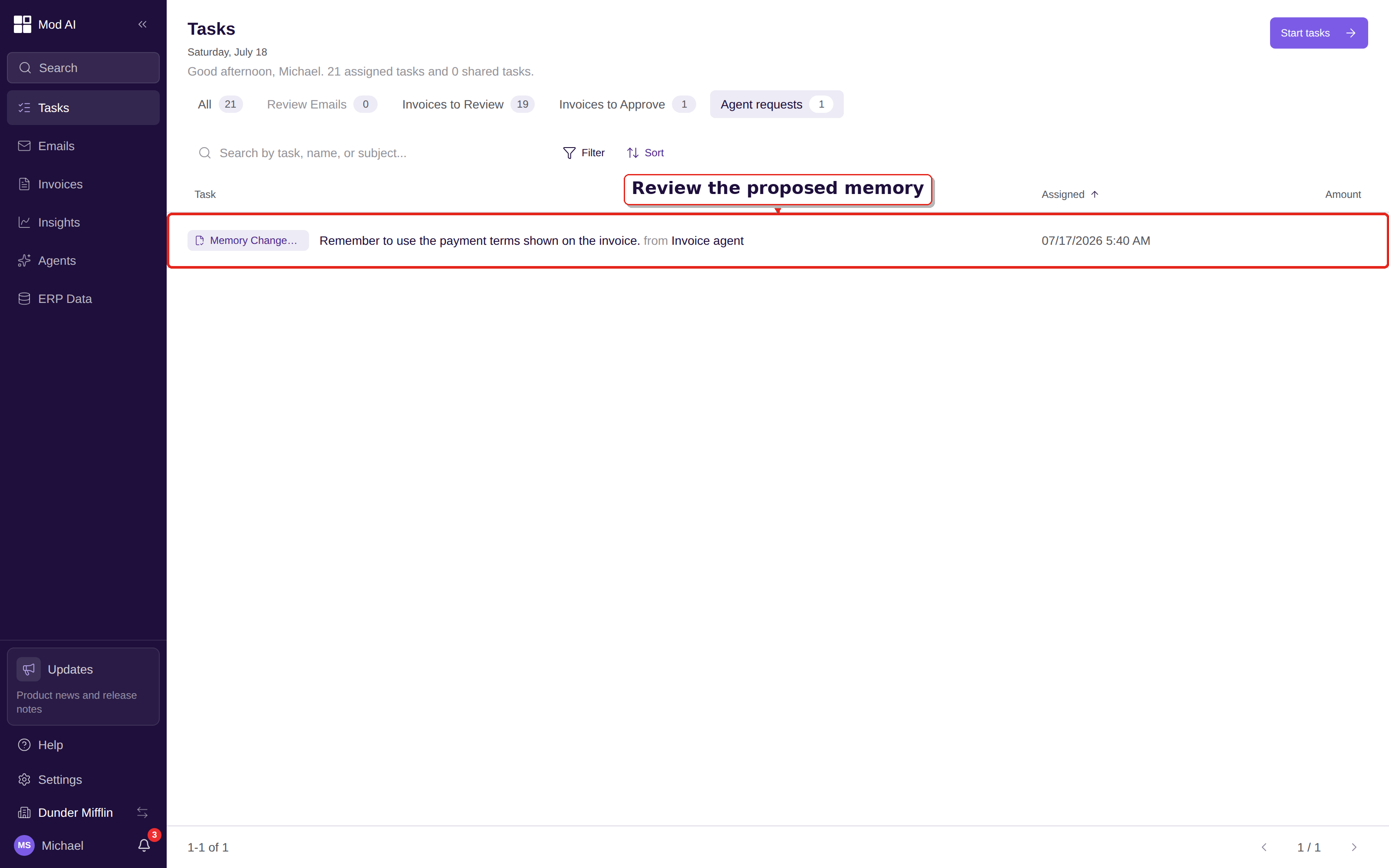
Current-surface companion: the anonymous tenant's Agent requests tab shows a proposed memory waiting for human review.
Start with Agent Memories, then read Create your first memory, Approve proposed memories, Memory types, Memory scope, and Memory audit log.
Set the matching differences your company accepts
Matching tolerances are now configurable from Settings. Open Settings → Validation checks, find Line item three-way match, and use the Fine-tuning controls for allowed price and quantity differences. Depending on your schema, a limit can use a percentage, an absolute amount, or quantity units. Choose the disposition in Action when found, then click Save.
The check uses the configured limits when it compares invoice lines with their PO and receipt data. Small expected differences can remain below the threshold, while a larger variance still raises the notice that your workflow expects. Saving a tolerance does not silently clear an existing result; re-run validation on an existing invoice when that action is available.
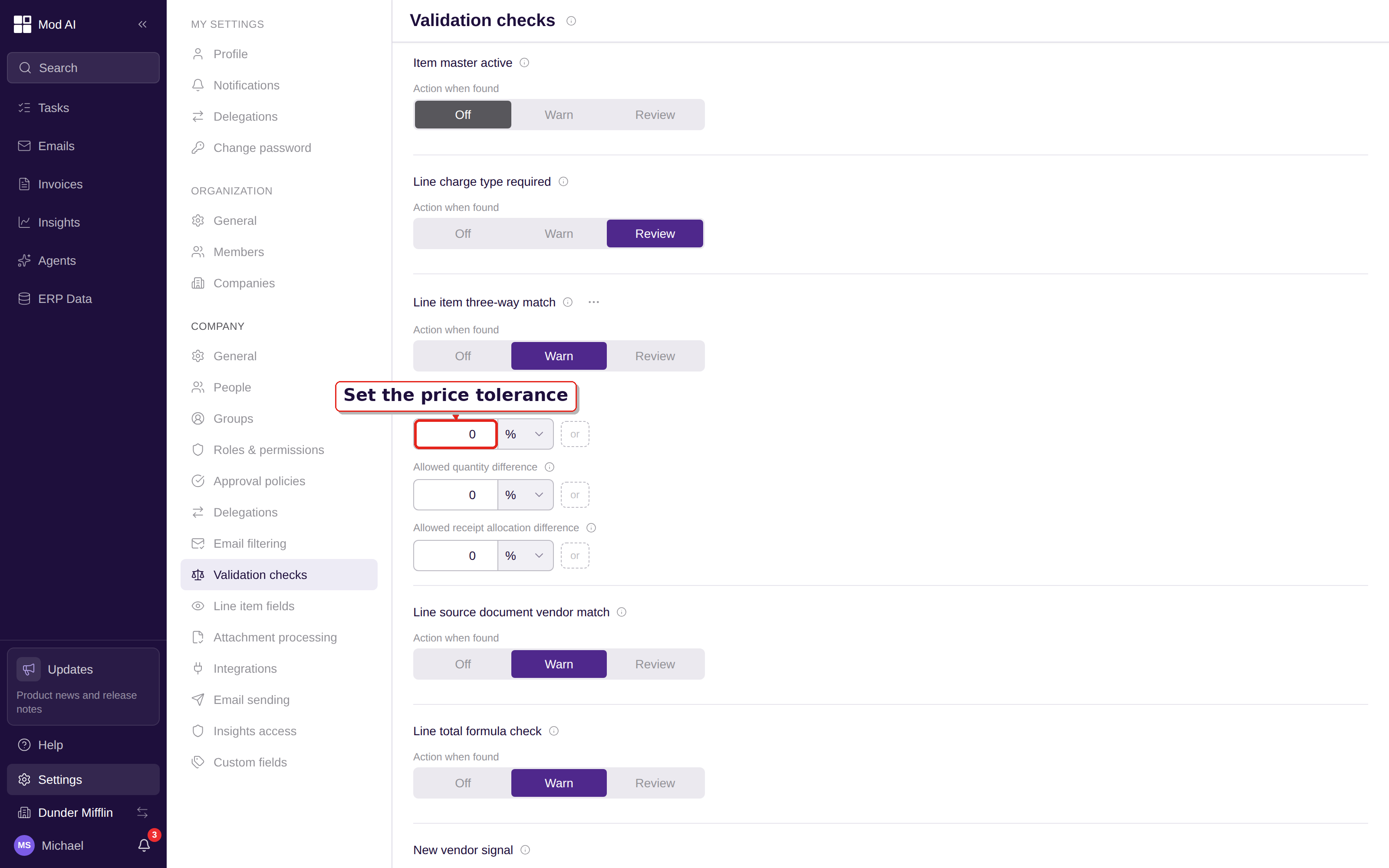
Current-surface companion: Settings → Validation checks shows the action and Fine-tuning columns used to set company matching behavior.
Read Configure matching tolerances and Match invoices to POs and receipts.
Set a field on many invoices at once
The invoice backlog now has a Set field... bulk action. Select the invoices, click Set field..., choose a schema-supported field, select Set value, Add, Remove, or Clear when available, enter the value, and click Apply.
The result is not a single all-or-nothing count. Each invoice reports whether the change was applied and, when it was not, why it could not be changed. Review the per-invoice result before clearing the selection, especially when the batch spans different statuses or entities.
Read Use bulk actions on invoices and Invoice backlog.
Split a line across projects or allocations
When your ERP integration exposes distribution splits, an invoice line can be divided across multiple projects or allocations in a built-in editor. Add the required split rows, choose Split evenly or Distribute by %, and check the displayed amounts. The editor validates that the split values add up to the line total before the invoice can save.
Open an invoice, choose Items, and open the line's distribution or allocation field. Availability and the exact reference fields depend on the ERP integration and company schema.
Read Split an invoice line across allocations.
Improved
Recover deleted invoices and follow matching results
Deleted invoices can now be restored from Invoices → Recently Deleted. Select eligible rows, click Restore, and read the per-row result. A PO-match notice now links directly to the affected line, so you can inspect the evidence without scanning the whole invoice. Three-way-match results are highlighted inline by dimension: quantity and unit price can each show their own mismatch state beside the invoice, PO, and receipt values.
Read Invoice backlog, Use bulk actions on invoices, and Match invoices to POs and receipts.
Refresh summaries and find reference records faster
Invoice summaries can be refreshed on demand after the invoice changes. When a summary is marked Outdated, open the invoice's AI surface and use Refresh summary, or ask Copilot to refresh or regenerate it after the latest save completes.
Vendor, PO, and GL dropdowns now sort labels naturally, search as you type, and scroll smoothly through more results. When a picker reopens, it brings the current selection into view when it is still available.
Read Review AI recommendations and field rationales, Advanced reference search, and Search by reference fields.
Keep your company's terminology in every work surface
Navigation, search, task rows, validation notices, and detail pages now use each company's own names and plural forms for its records. A workspace that calls an AP record a bill can keep that language as you move from the backlog to a detail page and back.
Read Use your company's record names.
What to do
No release-wide setup is required. Admins should open Agents and review the active Memories list, then watch Tasks for the next proposal. Review matching tolerances in Settings before changing the expected exception rate, and use the new bulk and split controls only after checking the selected records and their schema-supported fields.
Learn more
- Agent Memories
- Create your first memory
- Approve proposed memories
- Memory types
- Memory scope
- Memory audit log
- Configure matching tolerances
- Use bulk actions on invoices
- Split an invoice line across allocations
- Invoice backlog
- Match invoices to POs and receipts
- Review AI recommendations and field rationales
- Advanced reference search
- Use your company's record names