This major release adds a safety check before vendor email attachments enter processing, gives admins a flexible way to add fields to records, and makes manual invoice entry easier to follow. The extraction agent is also faster and more effective on the cases that need careful review.
Field names, labels, record types, filters, available actions, and invoice sections depend on your workspace schema, company configuration, and permissions. You may see a different label or fewer options than the examples below.
New
Review suspicious vendor email before processing
Clerked now screens every incoming vendor email for sender and source-fraud signals before it processes an attachment. Suspicious mail is held for review, so your team can decide what should happen before an invoice enters the workflow.
Open Emails, choose the held or needs-review thread, and read the High fraud risk panel in the detail view. Choose Allow sender or Allow domain to trust future mail from that source, Process once to continue only this email, or Block sender or Block domain to stop future mail. When you block a source, choose Fraud when that is the reason for the decision.
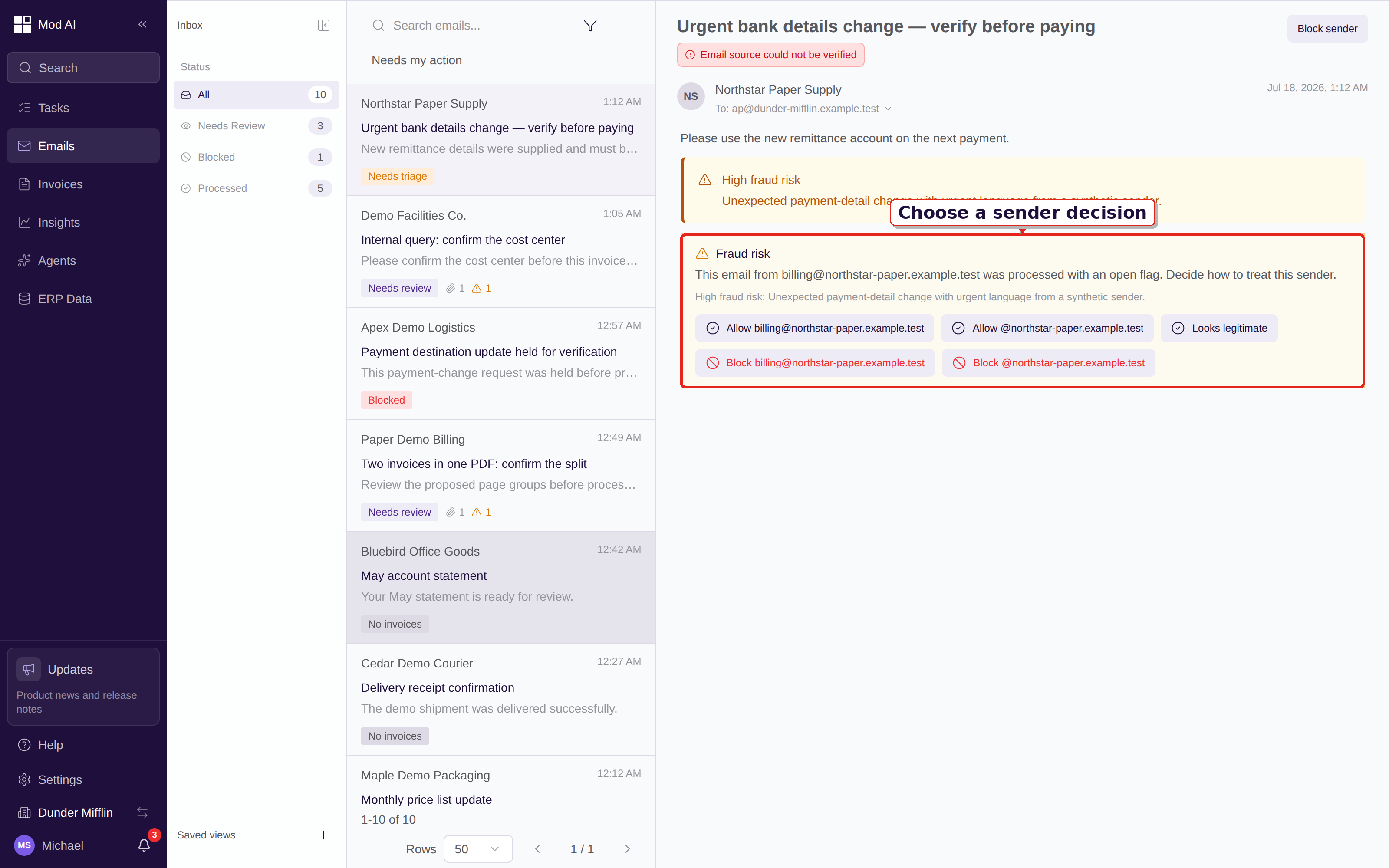
Current companion surface: the inbox shows the fraud-risk panel and sender controls available in today's interface.
Read Review an email for fraud for the decision guide and Inbox overview for the full email workflow.
Define fields that fit your process
Admins can create custom fields for invoices and other supported records without engineering work. Choose the record type, give the field a label, select its type and options, and add a description when your team needs more context. You can also let the agent suggest a select field from source evidence when that option is available for the record type.
Open Settings → Custom fields, select a record type, and choose New field. After a field is active, use it in record lists and choose Filter to narrow the worklist by its value. Definition and value changes are recorded in audit history with the change details, so reviewers can see how a record or field setup changed over time.
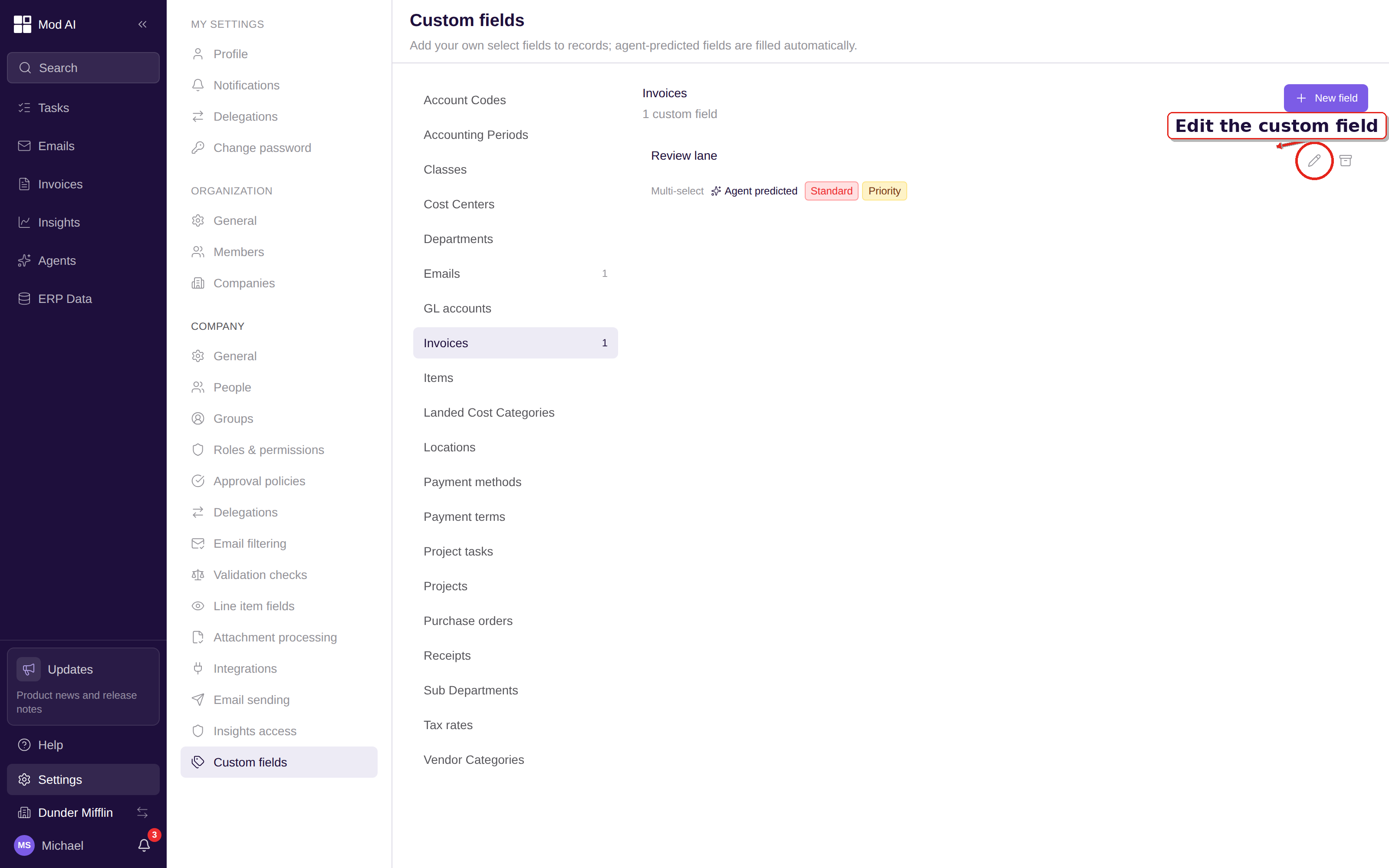
Current companion surface: admins manage record-specific fields from Settings → Custom fields.
Read Create custom fields for field setup, filtering, and audit history.
Enter an invoice with a live document preview
The redrafted manual entry flow lets you create an invoice from scratch or start with a document you upload. When you attach a PDF, image, spreadsheet, or DOCX, the document preview stays beside the invoice fields while you enter and check the data.
Open Invoices, choose New Invoice, and select Manual entry when that menu is available. Fill the header and line fields on the right. To work from a document, choose Attach Source Document and select a file, then use the live preview to compare the source as you go. If you start without a document, finish the form and confirm that you want to create the invoice without a source document.
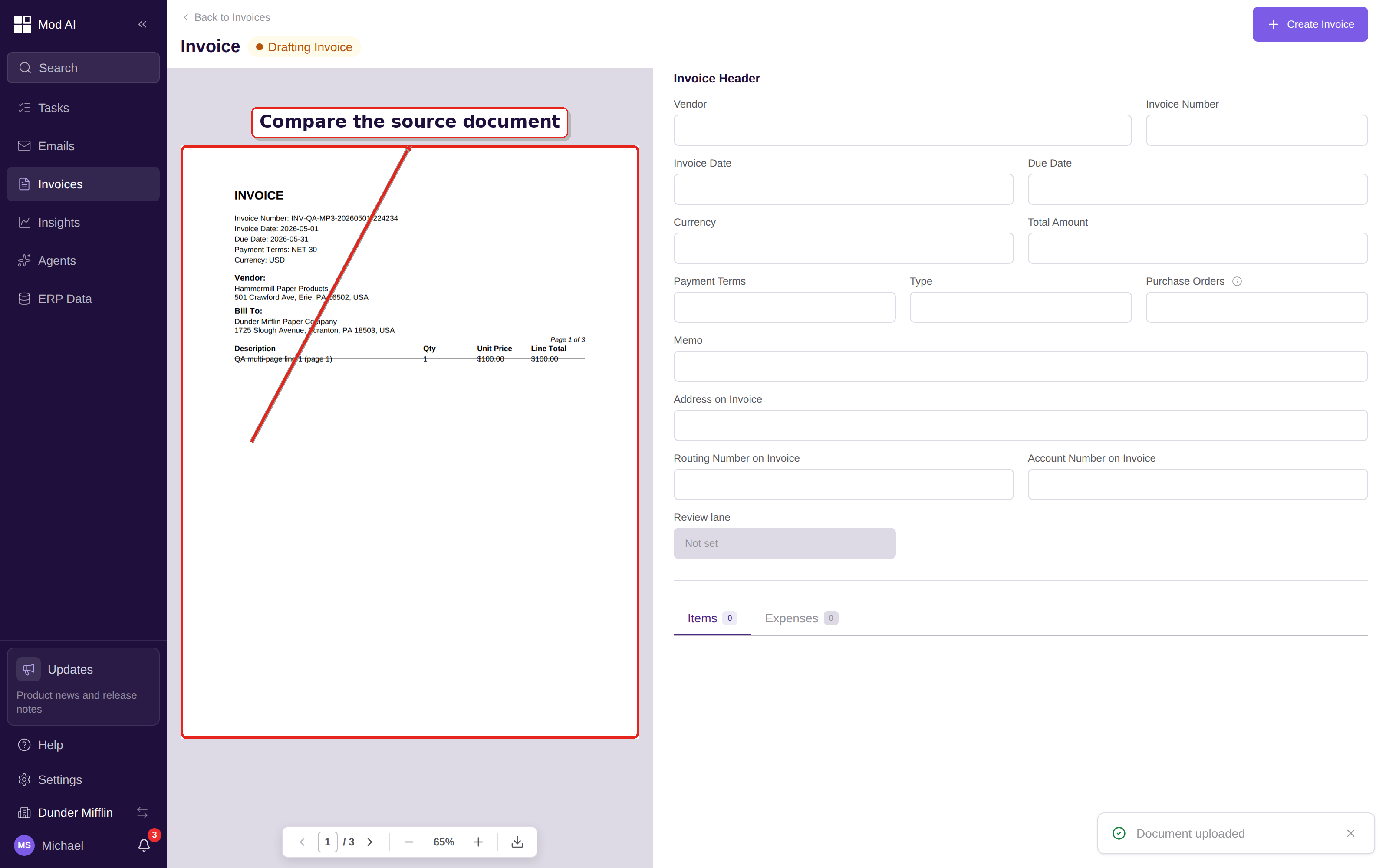
Current companion surface: the manual invoice workspace keeps the source preview beside the draft fields.
Read Create an invoice manually for the complete entry flow and Upload invoices for the upload-only path.
Improved
Extract invoices faster and more effectively
The extraction agent received a focused accuracy pass for speed, line-item handling, source context, and retry behavior. The aim is to get more useful values into review with less waiting and fewer repeated attempts. You still own the final check: compare highlighted fields with the source document before approval.
Open an invoice from Invoices, review highlighted fields, and use the source document when you need to verify a value. How AI extraction works explains the review signals and the accuracy improvements in this release.
On PO-matched lines, Clerked now fills the GL account, cost center, and project coding automatically. Review the PO match and the resulting line coding before approval. SAP export and line-level PO matching explains the current behavior.
Clerked now derives the correct per-fund A/P credit account on each push. The account picker is constrained to valid A/P accounts, so select from the available choices when you review a line. Use the Blackbaud Financial Edge NXT integration explains the credit-account workflow.
What to do
No release-wide setup is required. Review the fraud decision controls in Emails, ask an administrator to define any fields your team needs, and try Manual entry from the New Invoice menu when you need to create an invoice by hand. If you use SAP or Blackbaud, follow the inline note while reviewing PO-matched or exported lines.