This update brings the most common AP work into clearer places: one invoice review workspace, a more useful Memories library, safer vendor-email review, and approval coverage when someone is away. You do not need to turn on a release-wide setting. The controls you see still depend on your role, company setup, and connected services.
Screenshots use representative synthetic data in the anonymous Dunder Mifflin capture tenant. Your record names, available tabs, memory scope, email controls, approval route, and ERP actions can differ by workspace, permissions, and integration.
The invoice page starts with a clear AI recommendation
Open an invoice from Tasks or Invoices and look at the top of the work column. The old separate AI summary area is gone. In its place, Clerked gives you one plain-language recommendation before you start working through the fields. The agent compares the source document with the checks available for that invoice, then gives you a starting point. It is guidance for a reviewer, not an automatic approval.
- Green: Ready means the checks line up and the invoice can move forward. Open Show more to see the passing checks, then compare the document before you act.
- Yellow: Review means something needs your eyes first. The recommendation tells you what to look at and where to start, such as a duplicate flag or a warning.
- Red: Stop means there is a serious problem. Do not process the invoice until it is resolved. The red example below shows a confirmed duplicate.
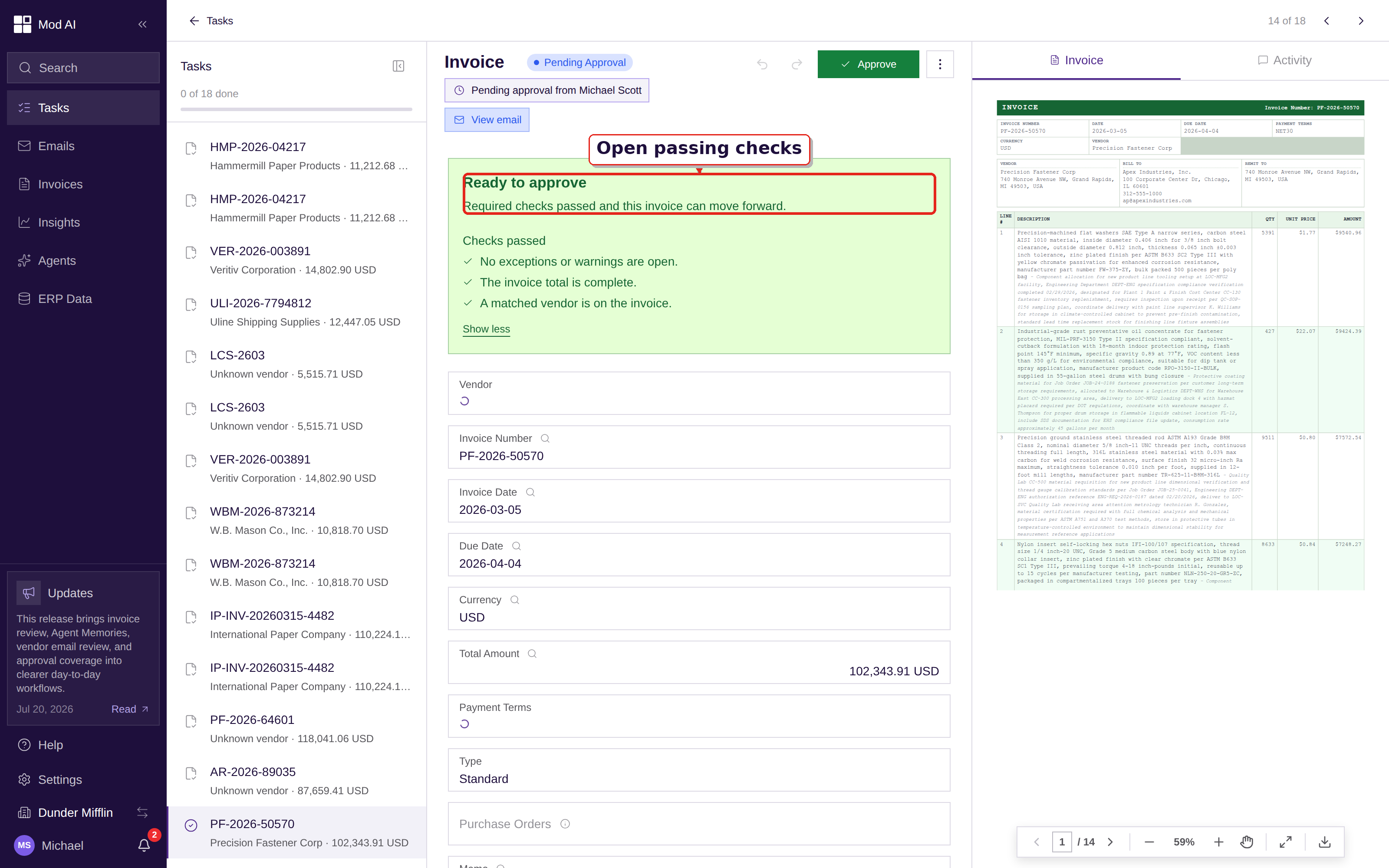
Green means the invoice is ready to move forward. Open the recommendation to see the checks behind it.
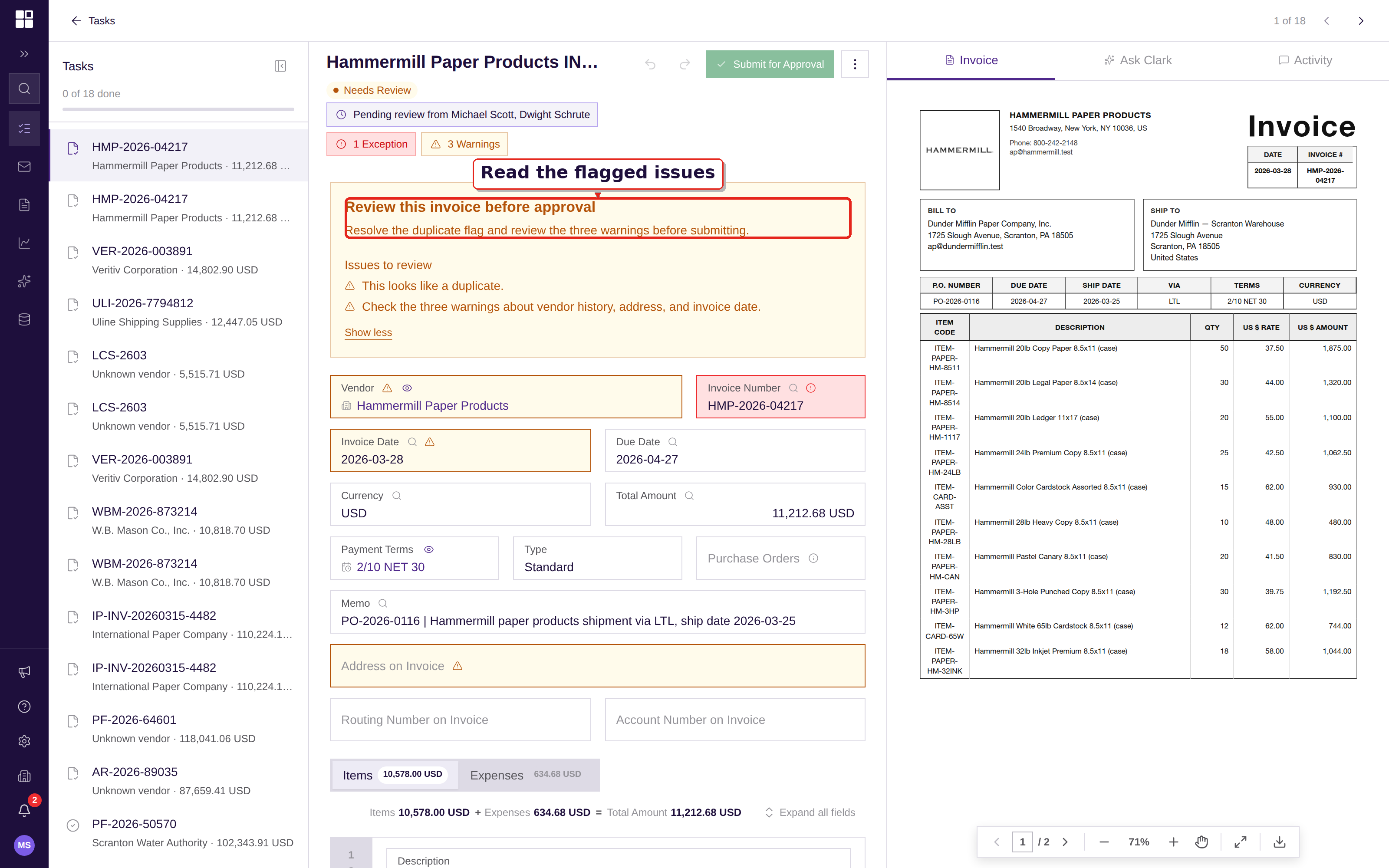
Yellow points to the issue that needs a person to look before the invoice is submitted.
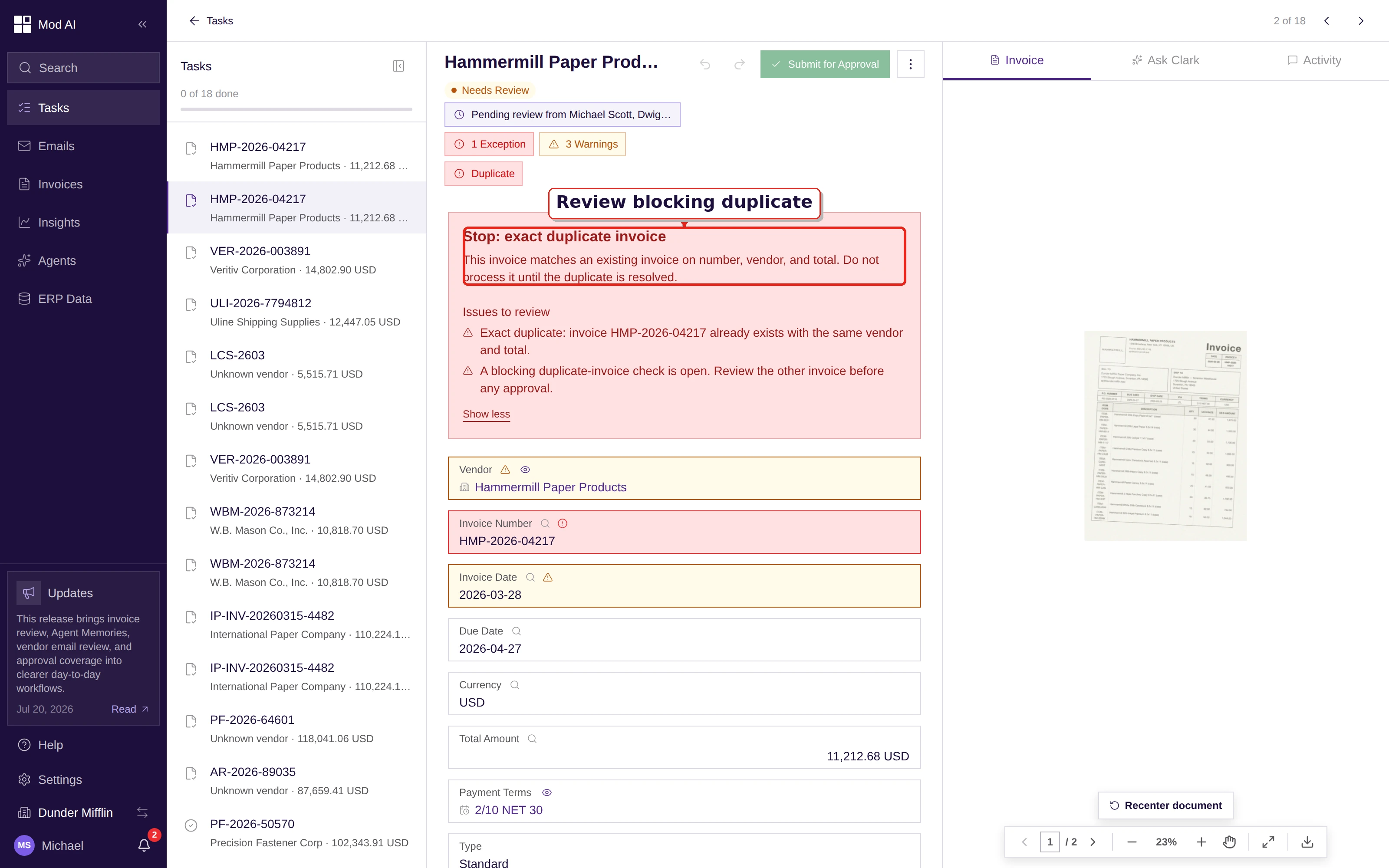
Red means a blocking problem was found. Here, the invoice is an exact duplicate, so do not process it until the duplicate is resolved.
Open Show more on any recommendation to read the specific checks and issues. When you need to investigate, select Ask Clark in the rail beside the document. A sparkle beside a header or line-item field can still explain why Clerked chose that individual value. Review AI recommendations explains the three states and the field-level reasoning.
Approvals now live below the invoice title
Returning users: the old Approvals tab is gone. The compact approval status now sits directly below the invoice title, at the top-left of the work column. It says who is reviewing or approving now, such as Pending review from... or Pending approval from.... Select that status to open the full route, including the current step, the next reviewers, and any route details.
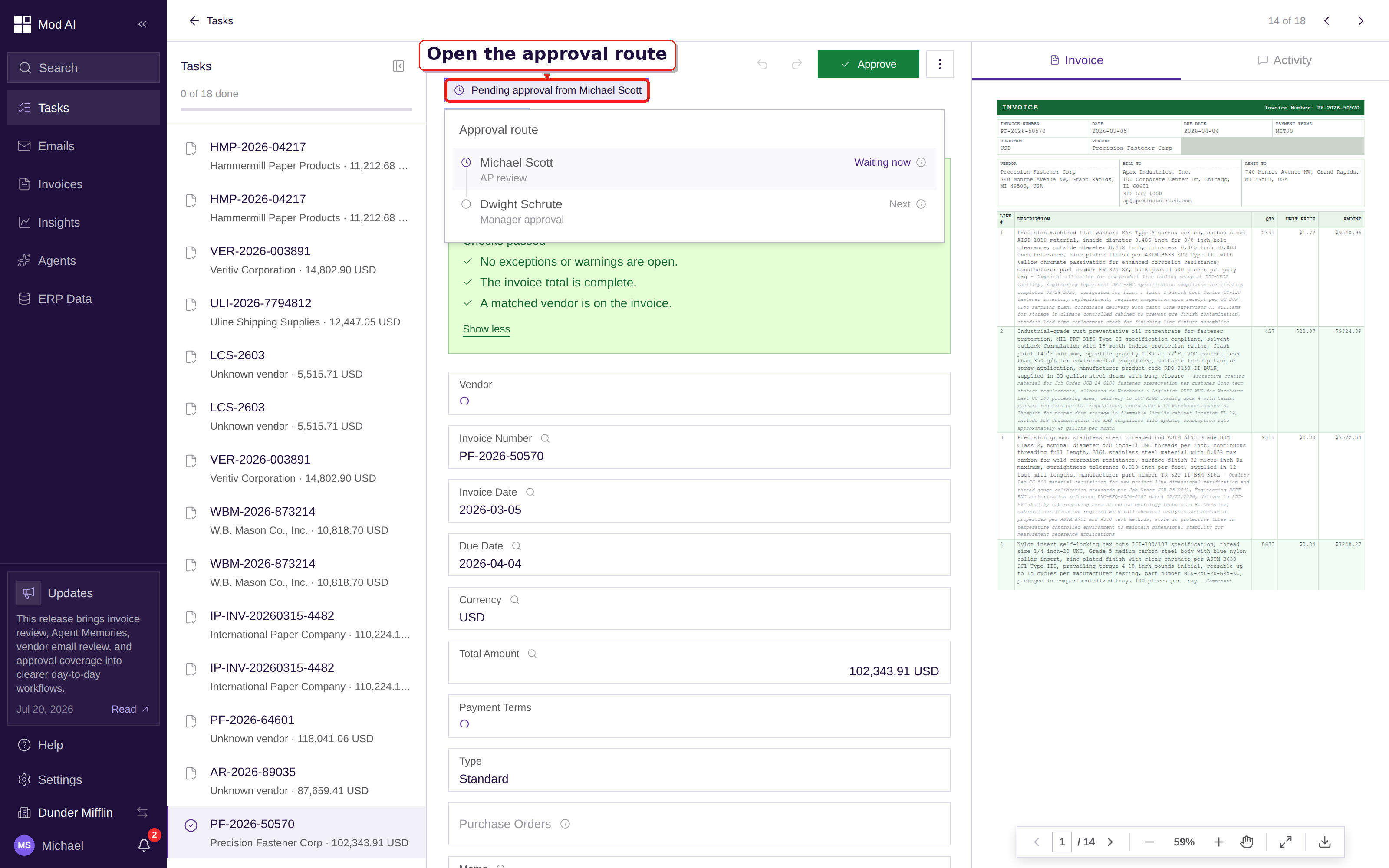
Open the status below the title to see who is waiting now and who is next.
When the invoice is waiting for your approval, use the green Approve button in the top action bar after checking the route and the invoice. If the invoice is still in validation, correct the blocking items first and use Submit for Approval when that action becomes available. Approve and reject documents covers the reviewer steps.
Work the new invoice layout
The editable invoice stays beside a shared right-side rail. The rail holds the source Invoice, Ask Clark, and Activity tabs. Use it instead of leaving the page: View email and related-record previews open as temporary rail tabs, so you can compare the context and close the tab when you are done.
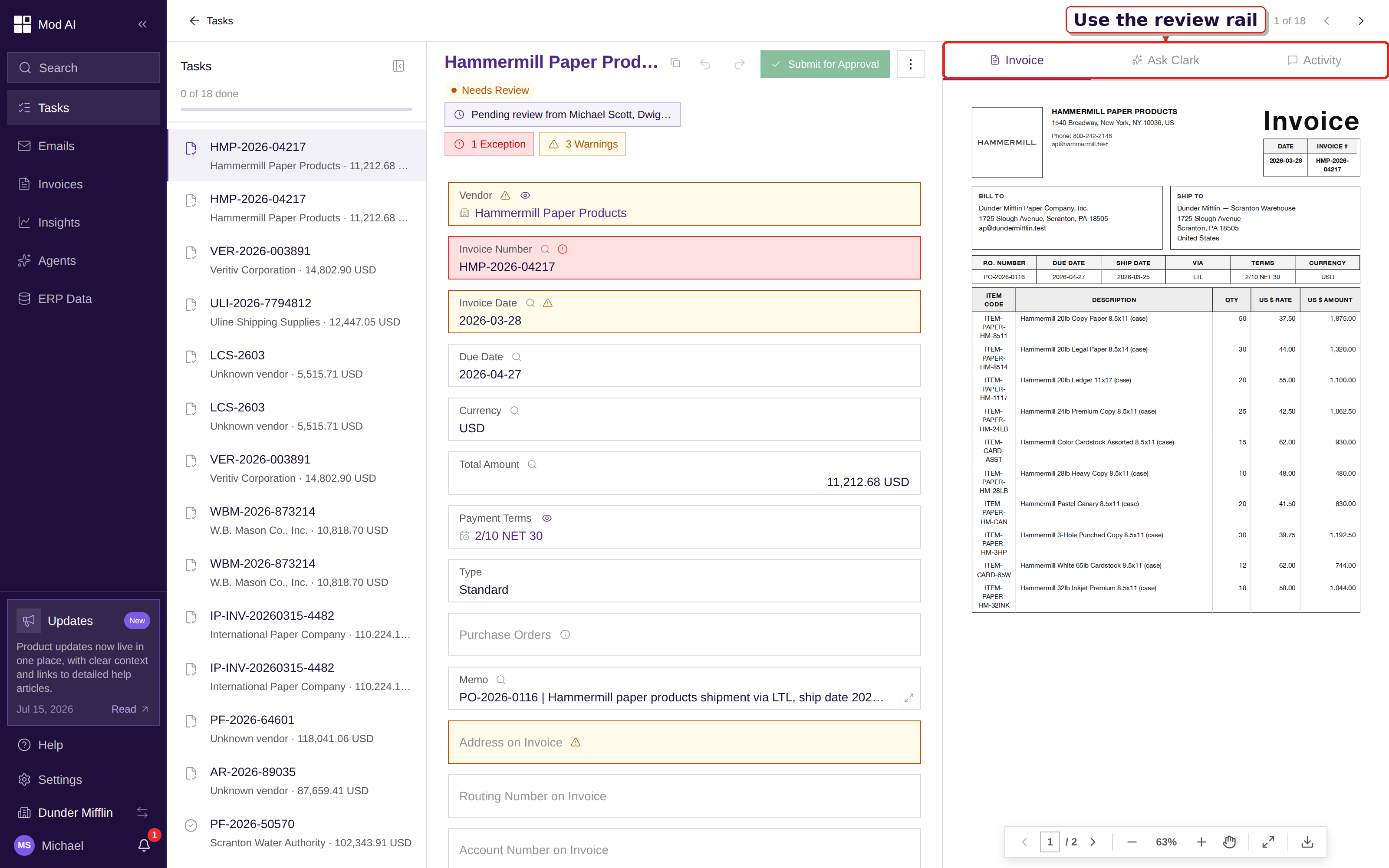
The current workspace keeps the rendered source document and the Invoice, Ask Clark, and Activity rail in view.
There is no separate Save button now. Edit a field, press Enter or click away, and the page saves as you work. Each open invoice tab keeps its own undo and redo history, so you have a safety net for a manual edit or a change you accepted from Ask Clark. Use the two controls beside the invoice title, or the usual keyboard shortcuts. If the invoice changed elsewhere, Clerked reloads the current version instead of replaying an older edit. Line items show only the fields that apply at first. Use Show N more fields on one row, or Expand all fields to open every available field. Comments and history are also no longer separate areas: select Activity in the rail to add a team note and read the dated audit trail together.
When payment terms include an early-payment discount, Clerked fills the relevant configured discount fields during extraction. Review the discount date, percentage, and amount with the other payment fields; you do not need to enter them by hand. Ask Clark can also apply changes on these invoices without the discount fields getting in the way.
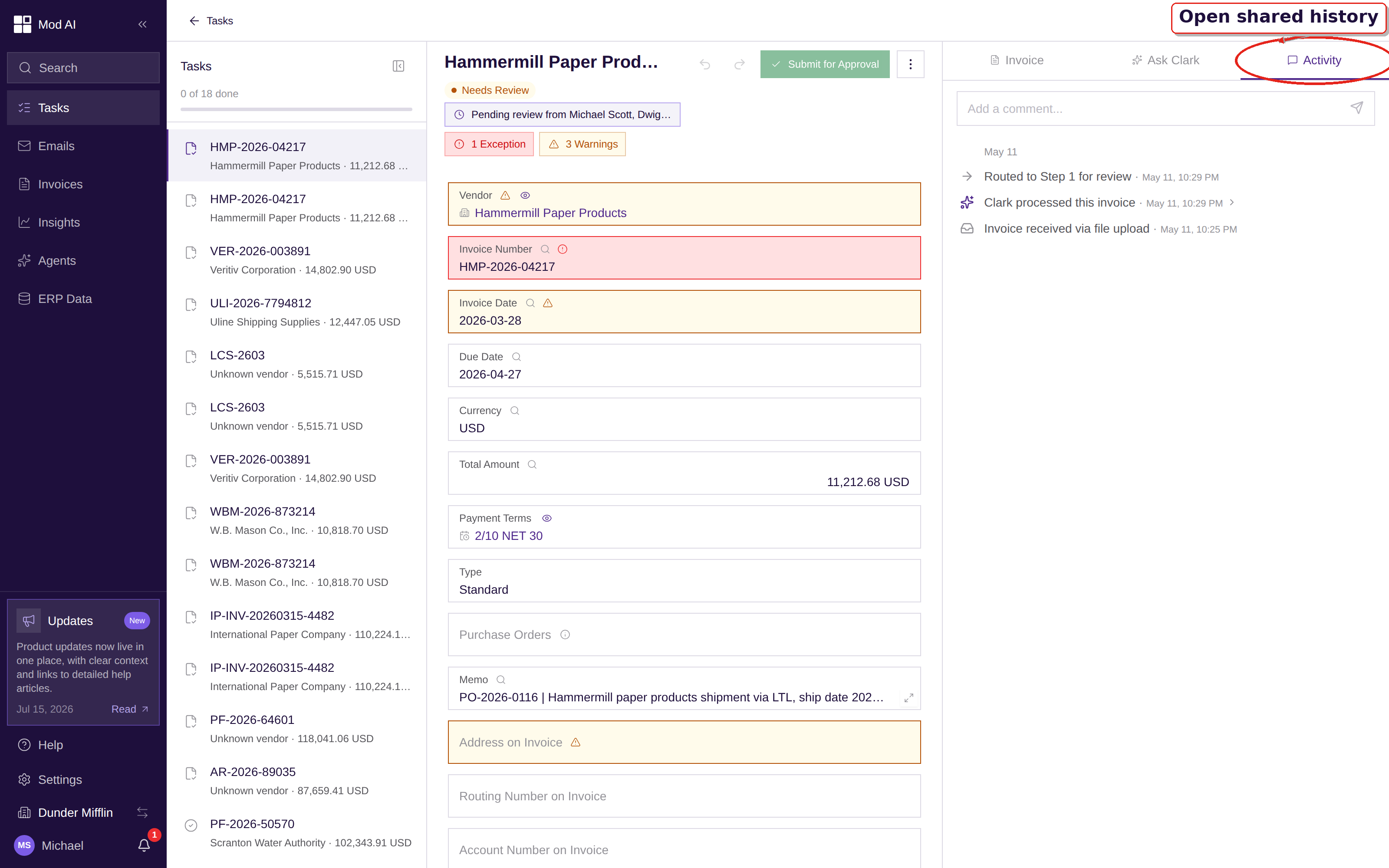
Activity keeps the comment composer and the dated invoice history in the same review space.
Review an invoice walks through the rail, autosave, line items, Activity, and the moved approval route.
The invoice backlog also has Hold and Cancel actions for a selected batch. Choose the invoices, use the inline action bar, give the required reason, and check the per-invoice result before you clear the selection. Use bulk actions on invoices has the full steps. You may already see these actions when your role and the selected invoices allow them.
When you need to find work, use Filter on the Invoices or Emails list. You can now narrow a list by Exceptions, Current approver, Age, Ingestion source, individual line-item fields, and relative date choices. The existing Active Notices filter now returns its matches too. Search, filter, and save views has the full list of choices available in your workspace.
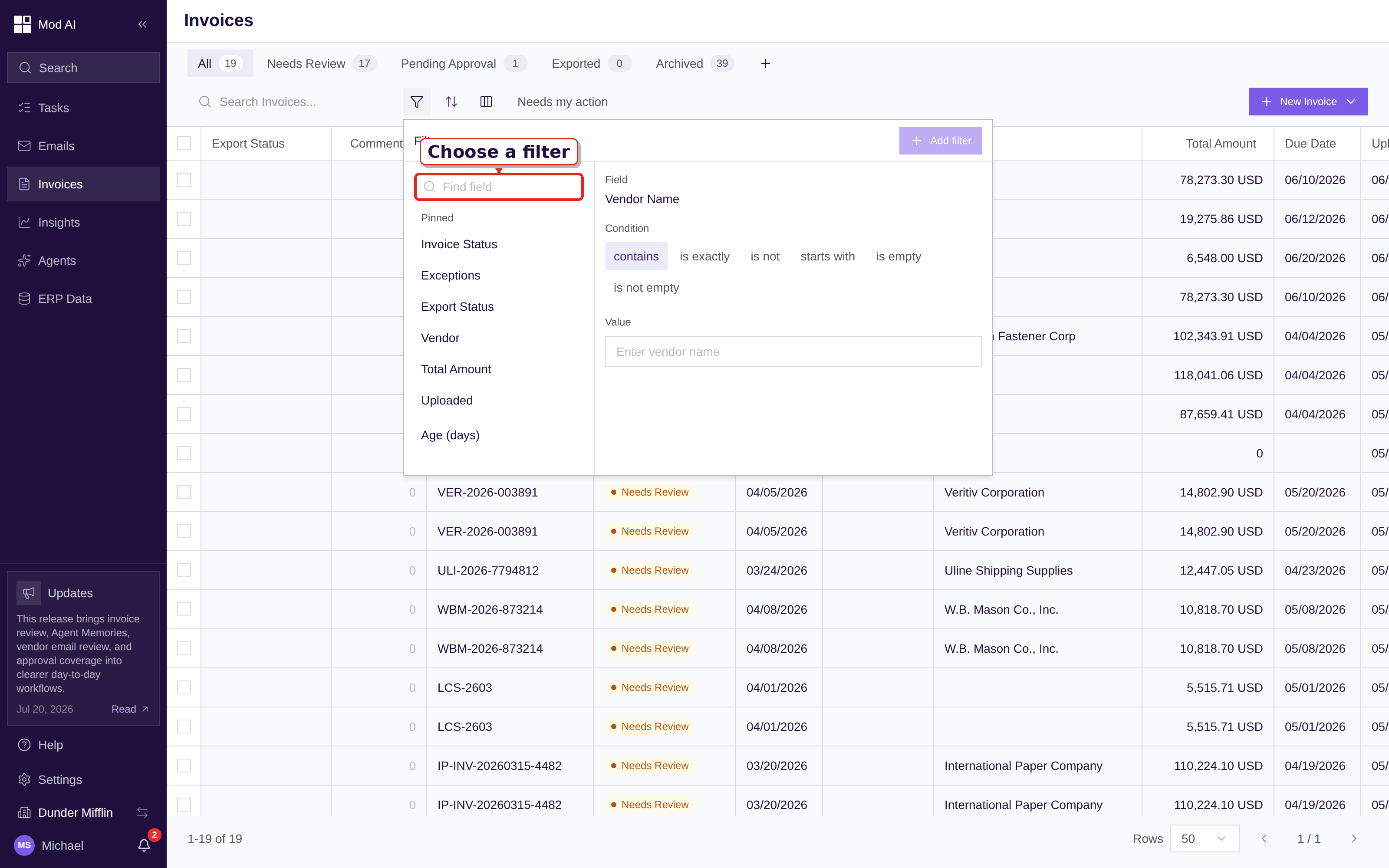
Use Find field to choose a filter. This Dunder Mifflin example shows Exceptions and Age in the picker; the fields available to you follow your workspace setup.
Memories are easier to find, review, and understand
Memories are reusable guidance that helps the agent, Clerked's assistant for invoice and email work, handle a future invoice or email the way your team expects. Some workspaces may already have candidate guidance prepared from approved ERP history, while other memories are written by a teammate or proposed after the nightly review cycle. A memory never skips validation or the approval route.
Open Agents, choose Invoice processing or Email processing, then open Memories. Search the list, use the Global and Vendor views, and read the scope, record chips, and author or reviewer details before you change a rule. Invoice memories can apply to more than one vendor when the same rule belongs with each of them. Agent Memories, memory scope, and memory types explain how to choose the right reach.
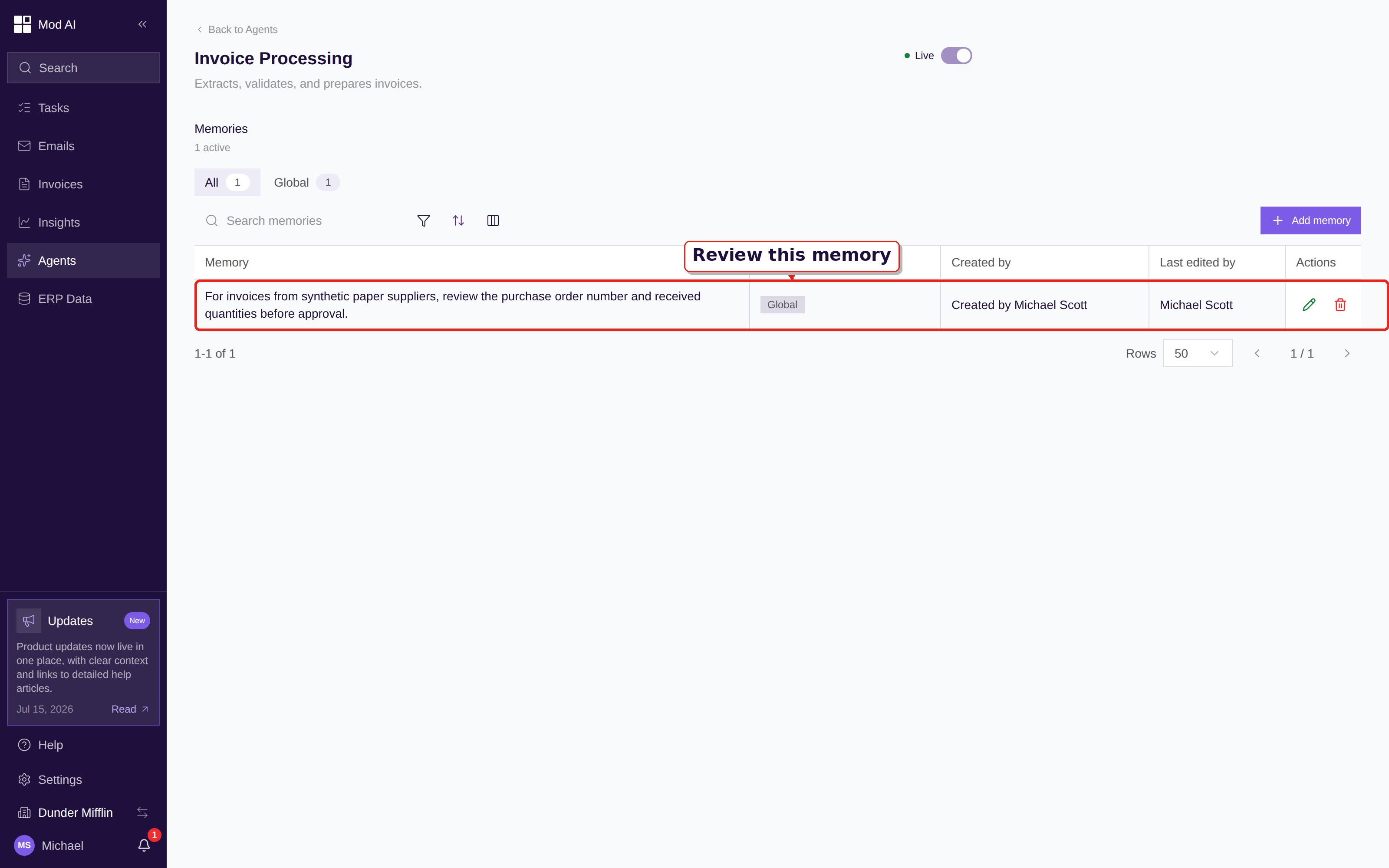
The current Memories list shows the active rule, its Global scope, and who created it.
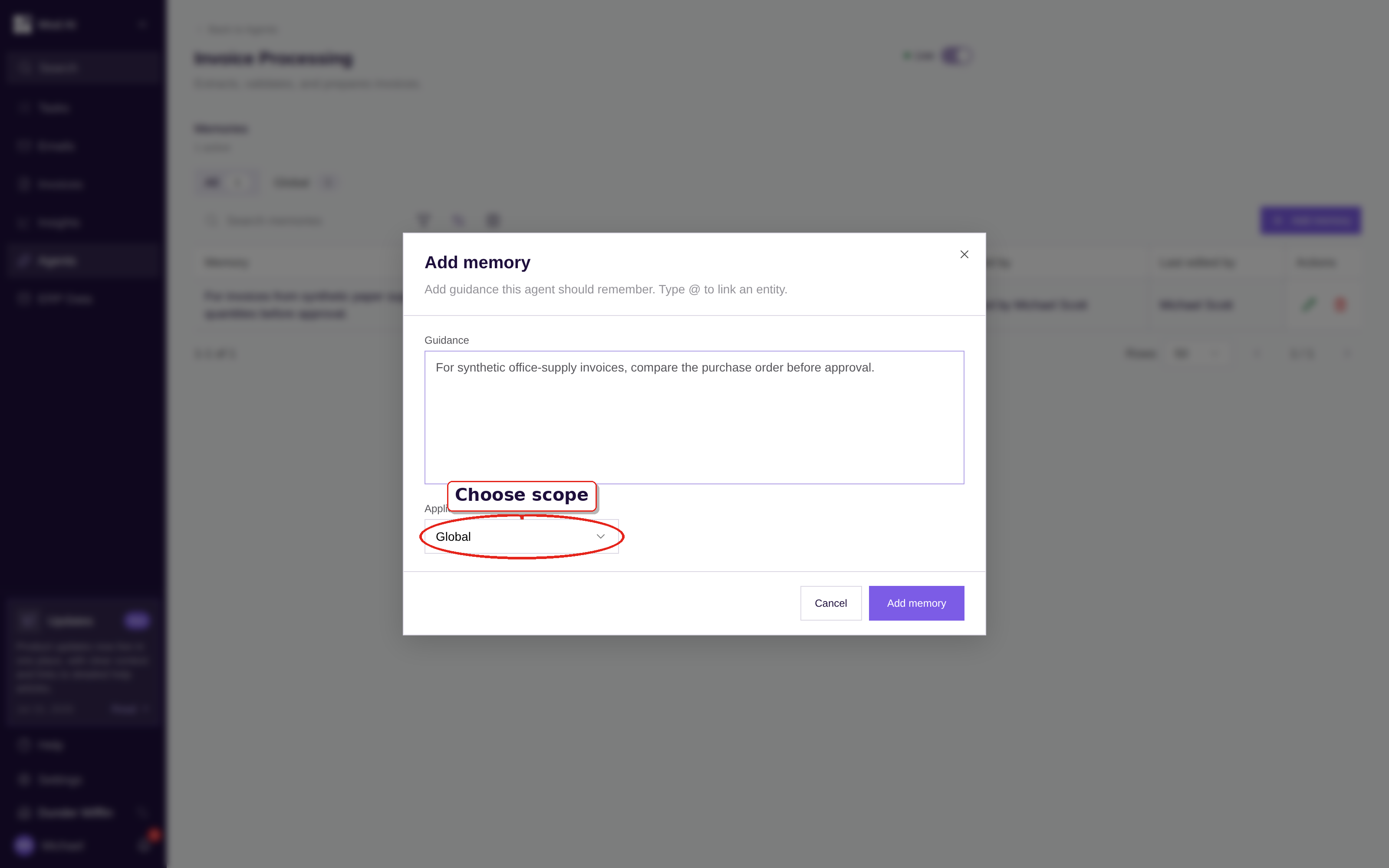
When you add a memory, choose the smallest scope that matches the rule before saving it.
An authorized user can choose Add memory in that list to write a rule directly. State when it applies, what the agent should do, and the exception. Choose Global only for company-wide guidance, or choose the vendor scope when the rule belongs to a supplier. Create your first memory walks through the form.
When the agent finds a repeatable correction, it can place a proposal in Tasks. Open the memory request beside its source invoice, check the evidence, edit it when needed, then choose the available Create, Update, or Reject action. Approve proposed memories has the review steps. After a memory is used, select Activity on that invoice to find the application event and its citations. Review Memory history explains both the list attribution and the invoice history.
Vendor email review is a focused workbench
Open Emails to work from queues such as Needs Review and Blocked. The selected thread keeps its message, attachment work, notices, and linked invoice together. Read the queue cue first, then open the message or attachment that needs a decision. Use the email workbench and triage inbound email cover the day-to-day flow.
Fraud review now spans both incoming email and invoices. When Clerked sees a possible email fraud signal, the selected thread shows the risk level and reason beside sender controls. Check the sender and message context, then choose the visible action that fits the case: allow the sender or domain, process the message once, or block it. On an invoice, Clerked can also raise a fraud signal for review. After you have checked it, use the available action to proceed; Clerked records that reviewed check so the decision is auditable. Review fraud signals explains both workflows.
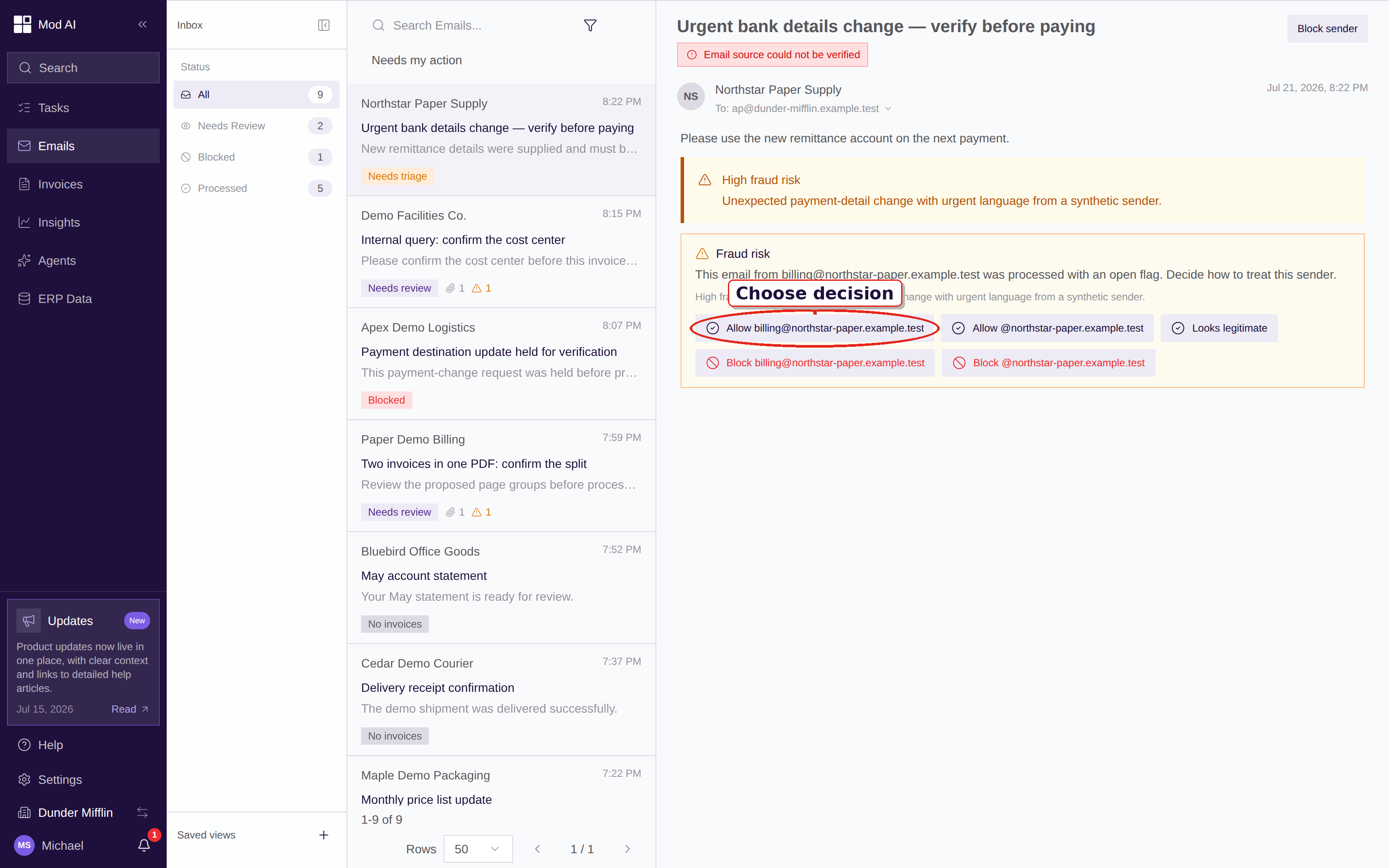
Make the sender decision from the fraud-review card after checking the risk signal and message context.
If a vendor attachment or direct upload is a password-protected PDF, Clerked now keeps the work in the product. Open the attachment, enter the password supplied by the vendor in the unlock step, and processing resumes after a valid password. You will not get a browser password prompt or be left with a document that cannot continue. Triage inbound email covers the attachment steps.
Draft vendor replies also stay with the thread. If your company has a ready Gmail or Microsoft 365 mailbox connection, a reviewer can edit the proposed reply and send the reviewed text through that mailbox. Without a usable connection, the reviewer can still copy the reply, open it in email, mark it sent, or dismiss it. Clerked does not send a reply automatically during intake. Keep vendor replies together describes the review and mailbox-send lifecycle.
Approval coverage when someone is away
Approvers can give a colleague time-bounded coverage, and the approval route records when someone acts on another person's behalf. In Settings, open Delegations under My settings to see coverage you created or received. Choose the colleague and dates, then review or end the coverage when plans change. Delegate approvals to someone else gives the approver steps.
Company administrators can open Settings → Delegations under Company to set up coverage on behalf of an employee or revoke it. This helps an AP team keep approvals moving when an approver cannot set coverage themselves. The available options depend on company permissions and employee records.
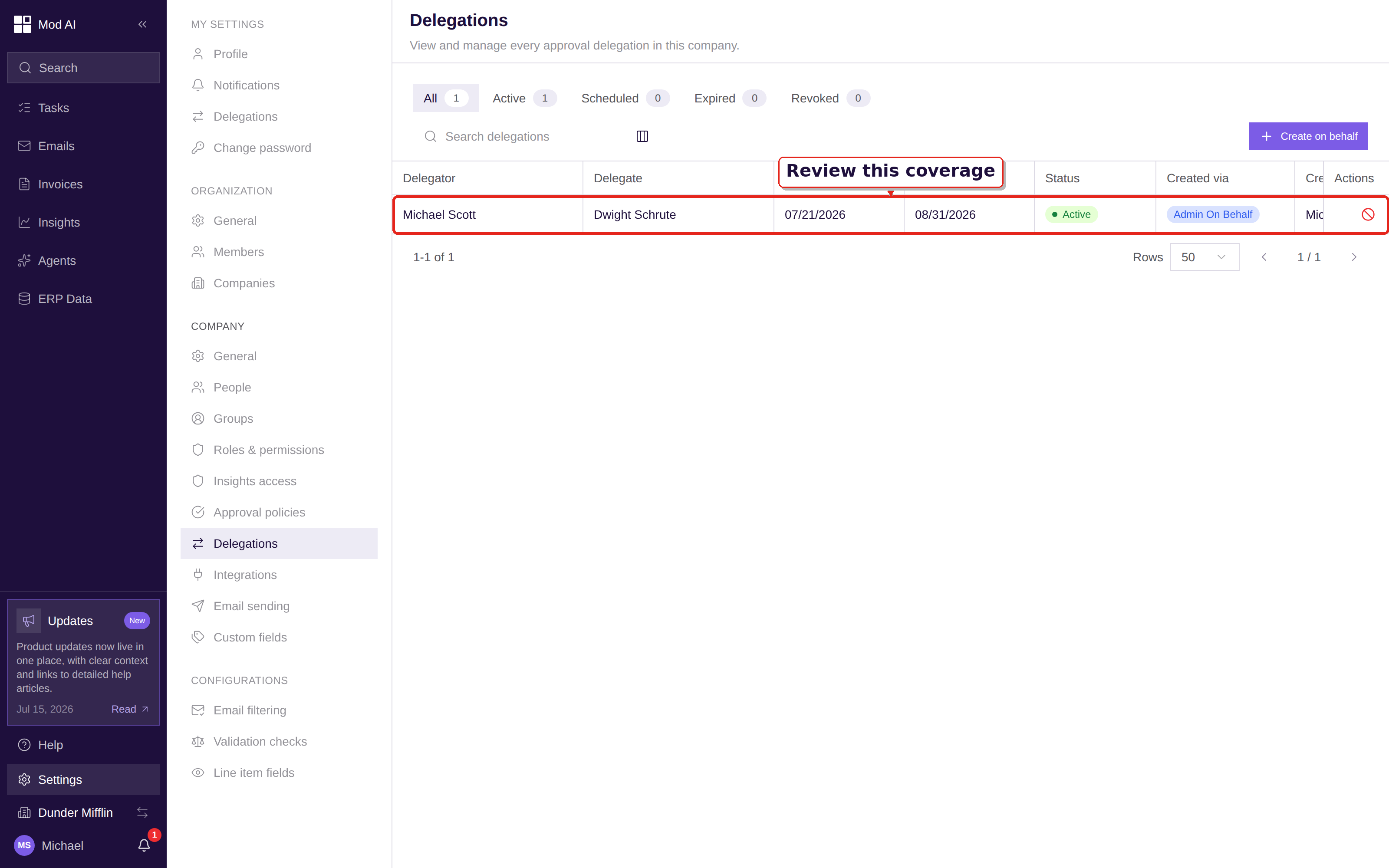
The Company Delegations list records the delegator, delegate, dates, and active coverage status.
For customers using SAP
PO-matched supplier invoices now create against their referenced purchase-order lines, so the SAP record keeps the PO and goods-receipt relationship used by the normal posting process. Export confirmation also gives SAP references time to settle before it decides whether the linked record is ready. This is an SAP workflow change, but this remains a general release with no SAP-only audience setting.
What to do
Open one invoice from Tasks and take a look at the document rail, Activity, and the compact approval status. Admins can review the Memories list and the Company Delegations page. Email reviewers should use the sender decision card when a thread is flagged, and teams with a verified mailbox can review the reply lifecycle before they send a vendor response.
Learn more
- Review an invoice
- Live autosave and validation
- Review AI recommendations and field rationales
- Search, filter, and save views
- Use bulk actions on invoices
- Comment on an invoice
- Agent Memories
- Create your first memory
- Approve proposed memories
- Memory types
- Memory scope
- Review Agent Memory history
- Inbox overview
- Triage inbound email
- Review a flagged email
- Keep vendor replies together
- Delegate approvals to someone else